

Jenkins streamlines the software delivery process and supports various software engineering tasks. It primarily manages CI/CD pipelines to validate and deploy changes efficiently. As an open-source automation server, Jenkins continuously builds, tests, and deploys software. It integrates with version control systems, build tools, and deployment platforms to support continuous integration (CI) and continuous delivery (CD) workflows. Developers define CI/CD stages using “pipelines” written in Groovy.
With its large plugin ecosystem, Jenkins easily connects to tools such as GitHub, Docker, Kubernetes, and AWS. It runs both in the cloud and on multiple operating systems, including Windows, Linux, and macOS..
What is Jenkins used for?
It is used for building, testing, and deploying software projects and automating CI/CD pipelines. It orchestrates complex workflows across multiple development stages and integrates with various tools and technologies in the software development lifecycle. It can also monitor and report on build and deployment processes.
Is Jenkins a CI or CD tool?
Its primarily functions as a continuous integration (CI) tool but also supports continuous delivery (CD).
In CI, development teams regularly integrate their source code into a version control system. Jenkins then triggers automated pipelines to build the code and run test cases, providing developers with quick feedback. The main goal of CI is to deliver this feedback rapidly so developers can fix bugs early and reduce risks before deploying to higher environments or production.
CD, on the other hand, uses automation pipelines to manage software releases. Teams create deployment artifacts, define dependencies, and configure environment-specific variables in a consistent and reliable way. Unlike continuous deployment, continuous delivery requires manual approval before the new build goes live in production.
How does Jenkins work?

It integrates with Git repositories, where developers collaborate and commit code changes. It picks up these changes to automatically start the build process, which involves compilation, testing, and error reporting as a feedback loop to developers. This enables a quicker turnaround in the development lifecycle without affecting production.
As part of continuous delivery, you can also use various automation tasks to manage dependencies and push deployment artifacts to appropriate repositories. Examples of artifacts include jar files required by Java programs and container images for container-based deployments.
Because the tool is open-source and extensible, it has empowered the community to develop a robust ecosystem of plugins. Numerous plugins are available for specific tasks related to version control, source code management, build, testing frameworks, deployment targets, reporting, and more. This modular approach also allows organizations to create flexible and highly customized pipelines.
core concepts and features
It is important to grasp certain concepts to fully understand Jenkins. The list below will get you up to speed with building basic pipelines, which we will cover in the following sections.
Note: This is not an exhaustive list of features.
1. Jenkins pipeline
A Jenkins pipeline represents an end-to-end workflow built for CI/CD using multiple tools. It defines the steps required to build, test, and deliver/deploy applications automatically through various environments.
Pipelines are defined using YAML files, and in the context of Jenkins, this file is named “Jenkinsfile.” Creating CI/CD pipelines ensures standardization, enforces best practices, facilitates easy collaboration, and speeds up the delivery of new application features.
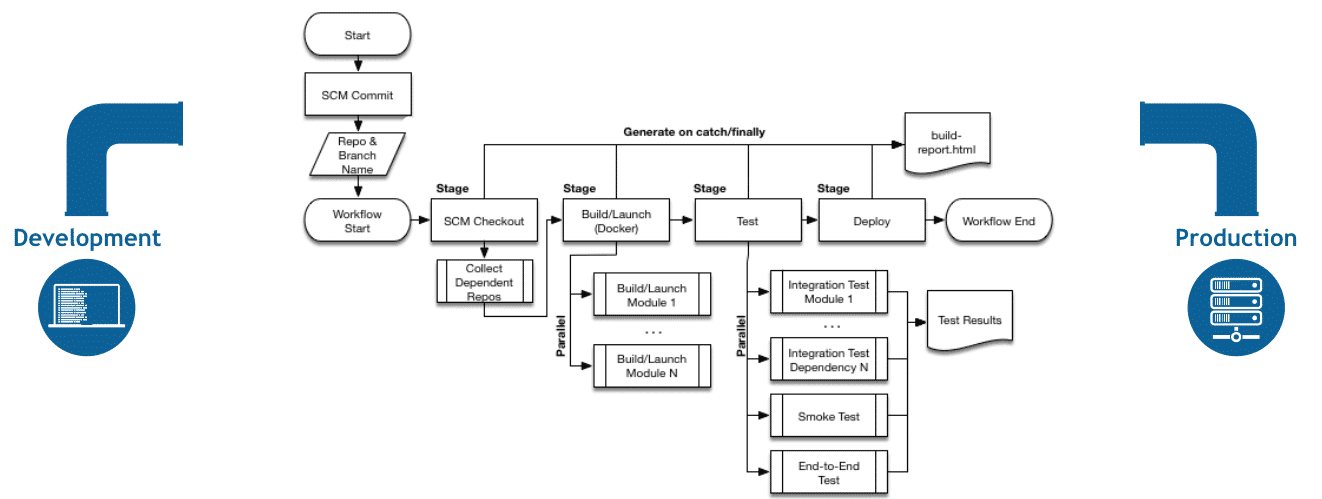
The diagram below shows the Jenkinks pipeline example:
2. Builds in Jenkins
Builds in Jenkins refer to the stage in which the application source code is compiled, tested, and packaged into a deployable artifact. A build can be triggered manually or automatically, where the its automation server polls for changes in the source code repository. The build involves various subtasks, such as compiling the code, running unit tests, static code analysis, document generation, etc.
Depending on the programming language in which the software is being developed, various plugins are available to support the build process in Jenkins. Also, depending on the type of deployment, various types of artifacts are versioned, created, and saved at predefined locations.
3. Jenkins Triggers
As the name suggests, triggers are actions or events that start build or deployment pipelines. It supports several types of triggers, described below:
Time-Based Triggers: It can run pipelines on a defined schedule using cron jobs to start executions at specific intervals.
Webhooks: When an external event occurs, Jenkins uses webhooks to start pipeline execution automatically.
SCM Triggers: It continuously polls the source control repository for changes. When it detects updates, It executes the pipeline jobs using the latest source code.
Parameterized Triggers: Developers can start builds by providing custom input parameters.
Manual Triggers: Users can log in to the Jenkins interface and manually start a pipeline.
4. Jenkins artifacts
Artifacts are files that emerge from a build process, needed for the deployment or for reporting purposes. Various runtime environments require various types of executables and binaries, which often result from the compile and build process.
It provides artifact management, which allows users to publish or archive locally on the Jenkin server or on an external platform. This improves traceability, reproducibility, and reliability in the software development process.
5. Jenkins agents

Agents are the infrastructure components leveraged by Jenkins to execute the pipeline jobs. A pipeline run needs compute resources to run the scripts and commands specified in the execution steps. Apart from the local execution on the Jenkins server, it is also possible to run the build jobs on other on-prem servers, virtual machines, or in a containerized environment.
In fact, it is highly recommended that the build jobs should not be executed on the server where Server jenkin’s is installed. These resources/VMs are called Agents. Agents help scale Jenkins operations beyond a single team to serve the automation and build requirements at a project/organization level.
6. Jenkins pipeline stages
Stages provide a logical structure for organizing and visualizing the workflow of a pipeline in Jenkins. This allows developers to segregate a complex Jenkins pipeline into clear phases, which helps in debugging or troubleshooting issues. A stage represents a phase of the pipeline.
For example, we can have build, test, and deploy stages. Each of these stages further contains jobs that accomplish the tasks a stage is expected to do. In general, stages in Jenkins provide a logical structure to the pipelines.
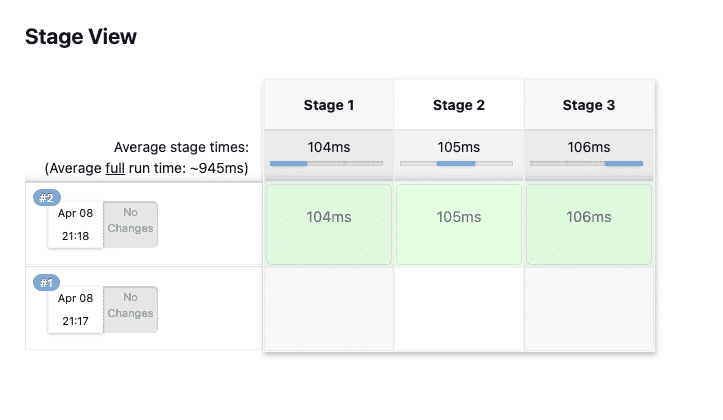
Stages are shown in the “Stage view”:
7. Jenkins jobs (projects)
A job represents a predefined set of actions performed by the pipeline in a specific order. For example, the build process involves multiple jobs — build, test, push, etc. — which are the building blocks of a Jenkins pipeline. We can configure jobs to run various scripts and commands. In Jenkins, jobs accept various parameter inputs, and you can define complex workflows using them.
8. Steps in Jenkins pipelines
Steps are the smallest unit of work in Jenkins pipelines. Each command or line written in the script is a step. Jenkins supports a wide range of built-in and plugin-provided steps, as well as the ability to write custom steps in the Groovy language.
To put stages, jobs, and steps in perspective, a Jenkins pipeline has multiple phases defined by stages. Each stage contains multiple jobs, each defined by a number of steps written using a scripting language.
9. Jenkins plugins
A typical Jenkins installation contains the core platform. Plugins extend its functionality, providing additional features and integrations for various use cases.
Jenkins plugins provide a wide range of features across all the phases of the pipeline and platform management. Various third-party systems can be integrated with Jenkins via plugins. Custom ones can also be developed. Plugins leverage reusability, thus enhancing the productivity and efficiency of the development team.
10. Jenkinsfile
Jenkinsfile is a text file that describes the pipeline as code to the Jenkins server. Every project that uses Jenkins for its CI/CD has this file in the project’s root directory and is usually committed to the source code repository. It makes the Jenkins server understand the sequence of steps to be carried out in each stage. This file provides a way to define pipelines in a version-controlled and reproducible manner, allowing teams to manage their delivery process alongside their application code.
Below is an example of a Script for a continuous delivery pipeline that includes three stages:
pipeline {
    agent any

    stages {
        stage('Build') {
            steps {
                echo 'Building..'
            }
        }
        stage('Test') {
            steps {
                echo 'Testing..'
            }
        }
        stage('Deploy') {
            steps {
                echo 'Deploying....'
            }
        }
    }
}
What is the architecture of Jenkins?
The Jenkins core is developed using the Java programming language. A simple installation of a Jenkins server consists of various internal components that manage communication and process requests from external applications, such as CLIs, requests, agents, etc.
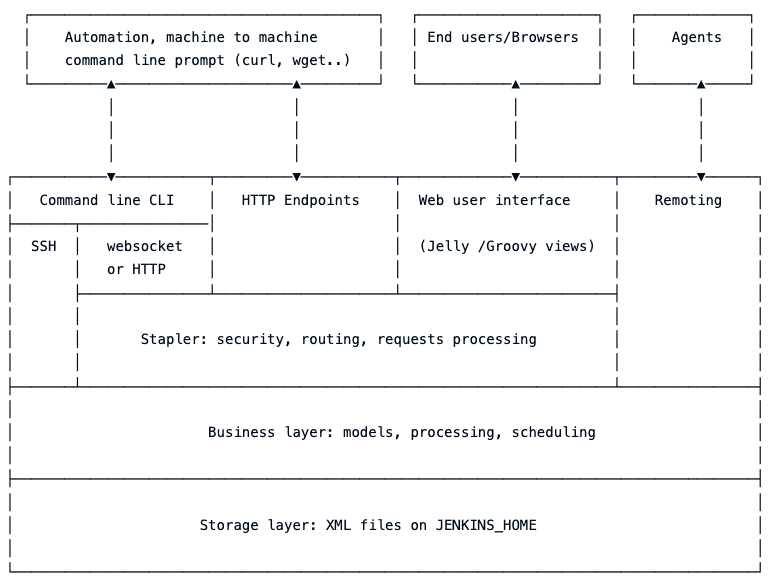
The diagram below shows all the important Jenkins components:
We will review some of the important aspects below to better understand how Jenkins works internally.
JENKINS_HOME
On the server where Jenkins is installed, all the files required for the management and configuration of plugins and pipelines, build artifacts, runtime data, etc., are stored in a specific directory named ‘JENKINS_HOME’. Depending on the OS, the exact path to this directory may vary. Configuration files stored in this directory ensure persistence across server restarts. This is also helpful in case of disaster recovery and creates a backup.
Business layer
This layer is responsible for managing core activities like job and user management, build execution, and plugin integration. The business layer handles interactions between these components and the incoming requests from external systems.
Every incoming request to trigger pipeline execution is validated for permissions, delegates actions to the agent machines, makes status updates available to appropriate systems, and handles notifications. The business layer shown in the Jenkins architecture diagram is the central system that does the groundwork and abstracts away the complexity.
Stapler web framework
In the diagram above, Jenkins implements HTTP communications via CLI, endpoints, and web interfaces. The Stapler web framework is responsible for handling incoming HTTP requests and generating dynamic web content. It performs the mapping of URLs and request bodies to appropriate Java classes, which is very important. This makes it easier to develop new plugins for Jenkins because the communication patterns are standardized by the Stapler web framework.
Remoting
The remoting component in the Jenkins architecture is an executable JAR file responsible for communication between the Jenkins core and agents. It enables decentralization of build execution by distributing build jobs to multiple agents. This also allows parallel execution, resulting in increased scalability.
Benefits of Using Jenkins
Jenkins remains one of the most popular CI/CD automation tools because of its flexibility, strong plugin ecosystem, and large community support. It easily integrates with multiple technologies, automates build and deployment pipelines, and supports distributed builds. Because it is open-source and free, Jenkins offers a cost-effective automation solution for organizations of any size. Its maturity, reliability, and constant updates make it a trusted choice for modern software development.
1. Automation Platform for CI/CD
At its core, Jenkins functions as an automation platform that supports continuous integration and continuous delivery (CI/CD). It allows developers to automatically trigger workflows that build, test, and deploy code changes. Moreover, Jenkins provides multiple ways to complete a specific task, giving teams flexibility in implementing end-to-end automation.
2. Scalability and Distributed Builds
It efficiently handles large-scale projects. Its distributed build architecture allows multiple agents to run parallel jobs, significantly reducing build times. Therefore, Jenkins is ideal for teams managing complex projects, multiple dependencies, or global collaboration across different regions.
3. Extensive Plugin Ecosystem
A major strength of Jenkins lies in its vast plugin ecosystem. Thousands of plugins are available for version control systems, cloud deployment, notifications, and many other functions. Furthermore, these plugins make Jenkins adaptable to a wide variety of development environments and workflows.
4. Collaboration and Visibility
Jenkins fosters teamwork by offering a centralized interface to monitor builds, tests, and deployments. Its web dashboard displays real-time build results, test reports, and project progress. Consequently, it improves transparency, enhances visibility, and encourages faster communication and issue resolution within teams.
5. Cost-Effective and Open Source
Being open source, Jenkins eliminates the cost of proprietary licenses. Additionally, its active global community continuously improves the platform and provides free support. As a result, Jenkins offers an affordable way to access powerful automation capabilities without vendor lock-in or high maintenance costs.
Disadvantages of Jenkins
Although It is powerful, it also has certain drawbacks that teams should consider before adopting it. These include setup complexity, performance limitations, plugin management issues, and security concerns.
1. Complex Setup and Maintenance
While Jenkins is free and open source, its configuration can be time-consuming. Setting up and maintaining Jenkins often requires technical expertise. Furthermore, managing rollbacks and backups can be challenging compared to newer CI/CD tools.
2. Plugin Management Challenges
The plugin ecosystem, while powerful, can also be difficult to manage. Teams must ensure that plugins remain up to date to avoid compatibility issues. Sometimes, newer versions may introduce breaking changes or conflicts with other plugins.
3. Security Vulnerabilities
It has historically faced several security risks such as remote code execution and cross-site scripting. Therefore, administrators must keep Jenkins servers updated and properly configured, which increases operational complexity.
4. Outdated UI/UX
The Jenkins user interface has changed little over time. It still offers basic navigation and limited modern features. Consequently, new users may find the UI less intuitive compared to newer, design-focused CI/CD platforms.
Tutorial: How to use Jenkins?
Let’s build a simple Jenkins project with a pipeline on the Jenkins server hosted locally. In this hands-on exercise, we will touch upon various components discussed in this post.
Using Jenkins involves the following steps:
- Log in to the Jenkins dashboard.
- Create a Jenkins pipeline.
- Configure pipeline options.
- Create a pipeline script.
- Trigger the pipeline run.
Step 1: Log in to the Jenkins dashboard
When you install Jenkins for the first time, you will be asked to set the login credentials for the admin user. Use these credentials to log in to the Jenkins server on https://your-server-ip:8080.
After logging in, you will be presented with a dashboard in a Jenkins Web UI, as shown below. If you have a fresh installation, you will not see any pipelines.

Step 2: Create the Jenkins pipeline
Click on the “New Item” button from the menu. You will be presented with a screen to select the type of “Item” you would like to create. As in the image below, select “Pipeline” and give this pipeline a name. Click on “OK,” and you will be redirected to the Configure page.

Step 3: Configure pipeline options
On the general tab, you will see several configuration options related to parameterization, SCM integration, build concurrency, etc., as shown below. You should also see a separate section for setting various types of build triggers. We can leave these configuration options untouched for now.

Step 4: Create a pipeline script
Scroll down to the Pipeline section. Here, you have two options for creating pipeline scripts: Either fetch them from the SCM or write them yourself. We have not configured any SCM, so we will write our simple pipeline script in the script block that follows:

Add the script below:
pipeline {
    agent any
    stages {
        stage('Stage 1') {
            steps {
                echo 'Pulling source code from SCM'
                // more steps
            }
        }
        stage('Stage 2') {
            steps {
                echo 'Compiling source code.'
                // build commands
            }
        }
        stage('Stage 3') {
            steps {
                echo 'Running tests'
                // run unit test cases
            }
        }
    }
}
This is a very basic representational pipeline script written in Groovy. The outermost parentheses represent the pipeline itself. We then define the agent attribute as ‘any’ because we can currently okay to run this pipeline on any available agent.
In this case, the agent also runs on the same machine as that of the Jenkins server because we have not explicitly configured any agent. The agent attribute is followed by consecutive stage blocks, which in turn define the steps to be executed in each stage.
The pipeline above simulates three stages:
- Stage 1 – Pull the source code from SCM. Needs SCM configuration and additional steps.
- Stage 2 – Compile the source code that is pulled.
- Stage 3 – Run unit tests on the compiled code.
Click on “Save”.
Step 5: Trigger the pipeline manually
Navigate to the newly created pipeline, and you will be presented with various options, as seen below:

If you want to revisit the configurations from the previous step, click on “Configure”; otherwise, click on “Build Now” to trigger the pipeline execution. The following screen will present a graphical summary of all the pipeline runs, as shown below:

Here, we can understand that the pipeline has been run twice, and the second run has been successful. To check the logs of the second run, click on “#2” under Build History and then click on “Console Output”.

We have successfully run a very basic pipeline !
You are recommended to explore the Jenkins interface, configure SCM, explore plugins, and build more meaningful pipelines.
Best practices for working with Jenkins
Here’s a quick recap of some best practices to follow when using Jenkins:
Leverage plugins to build pipelines faster instead of building them from scratch unless it is absolutely necessary.
Restrict access and secure the configuration files used by Jenkins, as they may contain sensitive information. It is recommended that you use a credentials plugin to manage service account credentials used for automation.
Treat the Jenkinsfile as code and commit it to SCM. This enables versioning of the pipeline definition and helps with easy rollback, team collaboration, and traceability.
Jenkins is all about automation. Configure triggers to automate pipeline builds.
Configure pipelines to fail in the initial stages of the execution and implement informational logging messages. This enables developers to understand the errors quickly and thus focus on fixing the bugs for faster and more reliable software delivery.
Regularly back up the Jenkins configuration so that in case of disaster, the recovery results in minimum information loss.
Conclusion
Jenkins remains one of the most powerful and widely adopted CI/CD automation tools in the DevOps ecosystem. By enabling continuous integration and continuous delivery, Jenkin’s streamlines the software development lifecycle—from code commit to deployment—ensuring faster, more reliable, and consistent releases. Its open-source nature, extensive plugin ecosystem, and support for distributed builds make it highly flexible and adaptable to projects of all sizes.
Despite challenges such as complex setup, plugin maintenance, and occasional security considerations, Jenkins continues to stand out due to its scalability, automation capabilities, and strong community support. With proper configuration, best practices, and continuous improvement, Jenkins can serve as the backbone of an organization’s CI/CD pipeline, driving automation, enhancing collaboration, and accelerating innovation.
In essence, It empowers development teams to automate repetitive tasks, ensure high-quality code, and deliver software efficiently and securely—making it an indispensable tool for any modern DevOps workflow.
