
Introduction
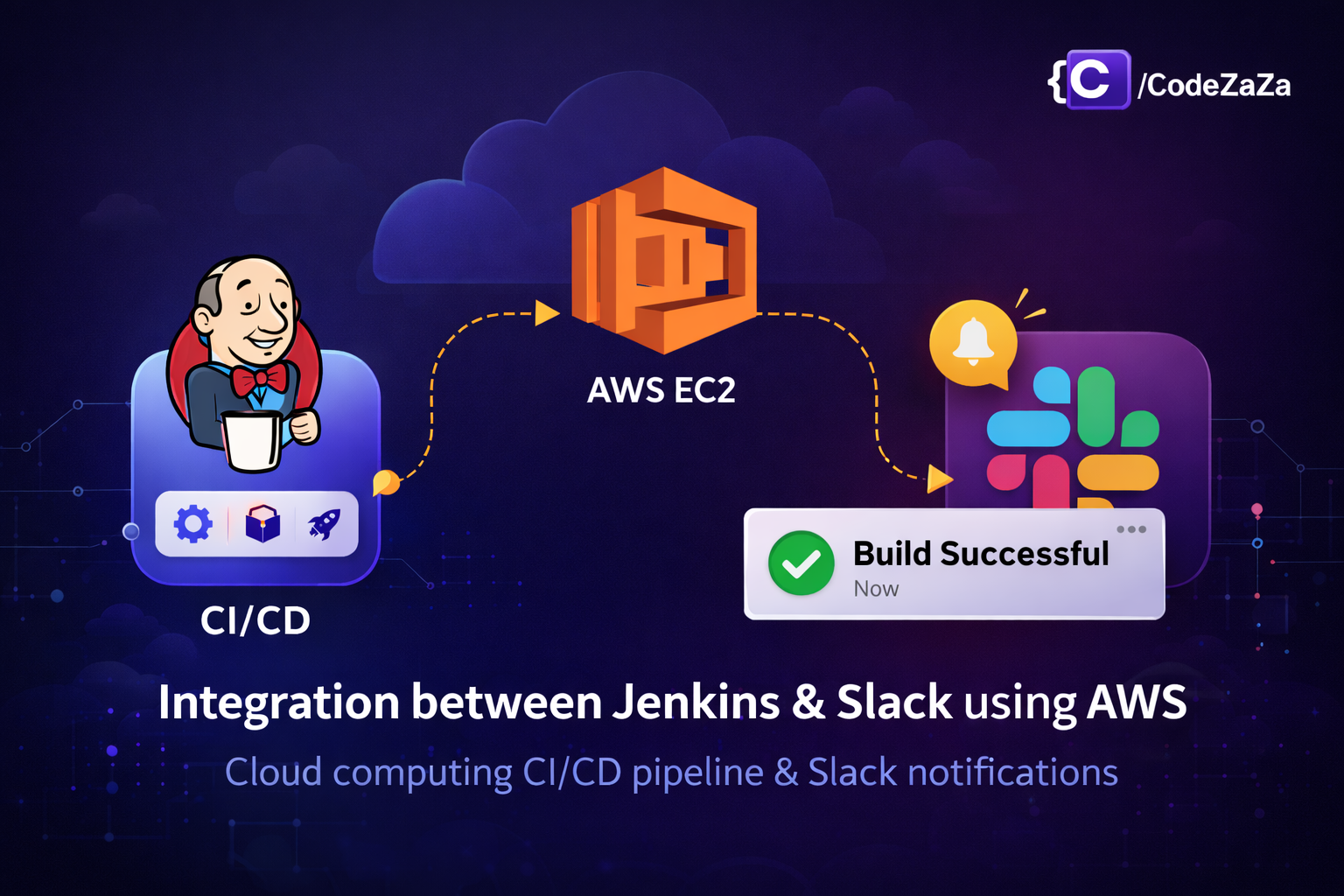
Slack integration in Jenkins helps DevOps teams receive real-time build notifications directly inside Slack channels. Modern DevOps teams rely on automation and instant communication to deliver software efficiently. While Jenkins automates building and deploying applications, Slack ensures that teams stay informed about every important update.
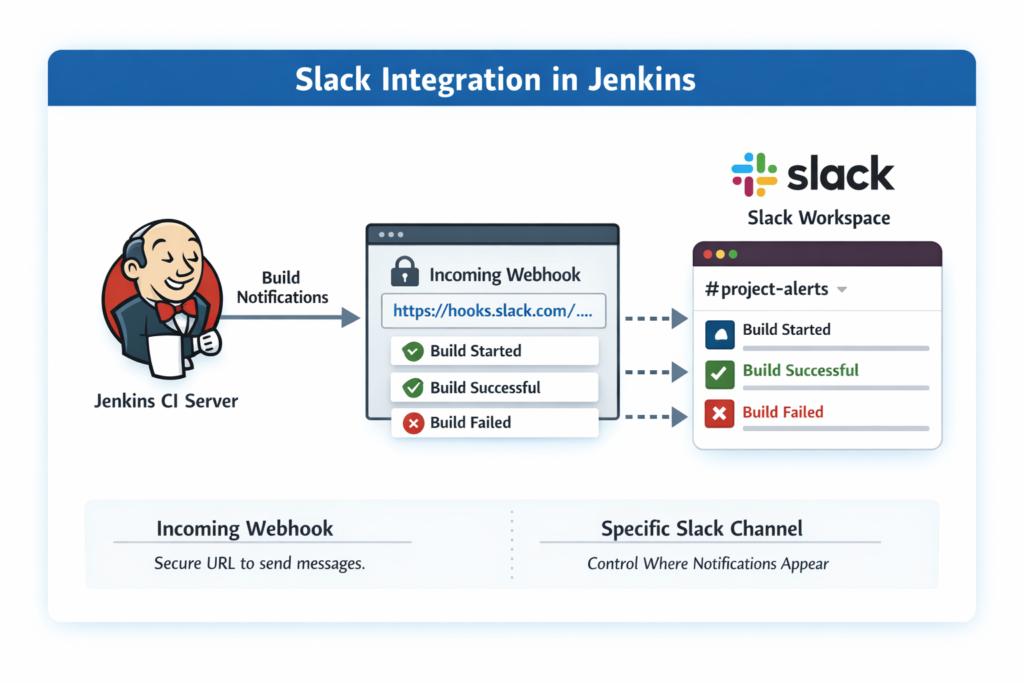
By enabling Slack integration in Jenkins, you can automatically send build notifications to your Slack workspace whenever a job starts, succeeds, or fails. As a result, team members no longer need to log in to Jenkins repeatedly to check job status.
In this step-by-step guide, you will learn how to configure Slack notifications in Jenkins using Incoming Webhooks. By the end of this tutorial, your Jenkins server will send real-time build alerts directly to Slack, improving visibility, collaboration, and overall CI/CD workflow efficiency.
Understanding Slack Integration in Jenkins
Before configuring Jenkins, you must create a Slack app with an Incoming Webhook.
An Incoming Webhook allows Jenkins to send messages directly to a Slack channel using a secure URL. Each webhook connects to a specific Slack channel, which gives you full control over where notifications appear.
Creating a Slack App for Jenkins
Before configuring Jenkins, you must create a Slack app with an Incoming Webhook.
An Incoming Webhook allows Jenkins to send messages directly to a Slack channel using a secure URL.
Steps:
- Go to api.slack.com/apps
- Click Create New App
- Choose From Scratch
- Select your Slack workspace
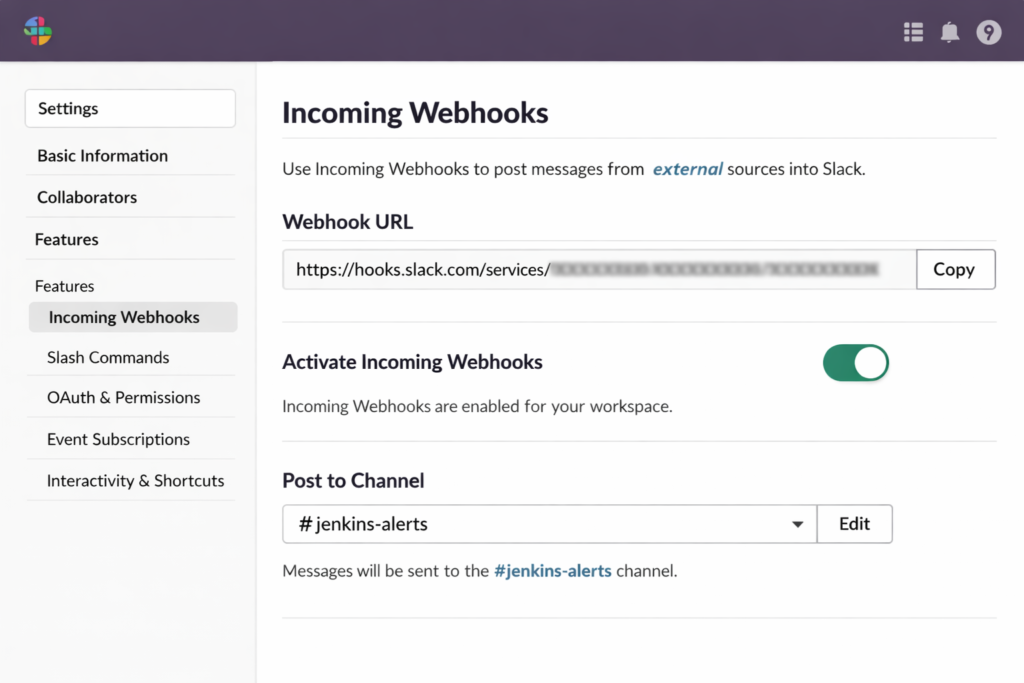
- Enable Incoming Webhooks
- Create a new webhook for a specific channel
- Copy the generated Webhook URL
Each webhook connects to a specific Slack channel. Therefore, you can control where notifications appear.
Installing Slack Plugin in Jenkins
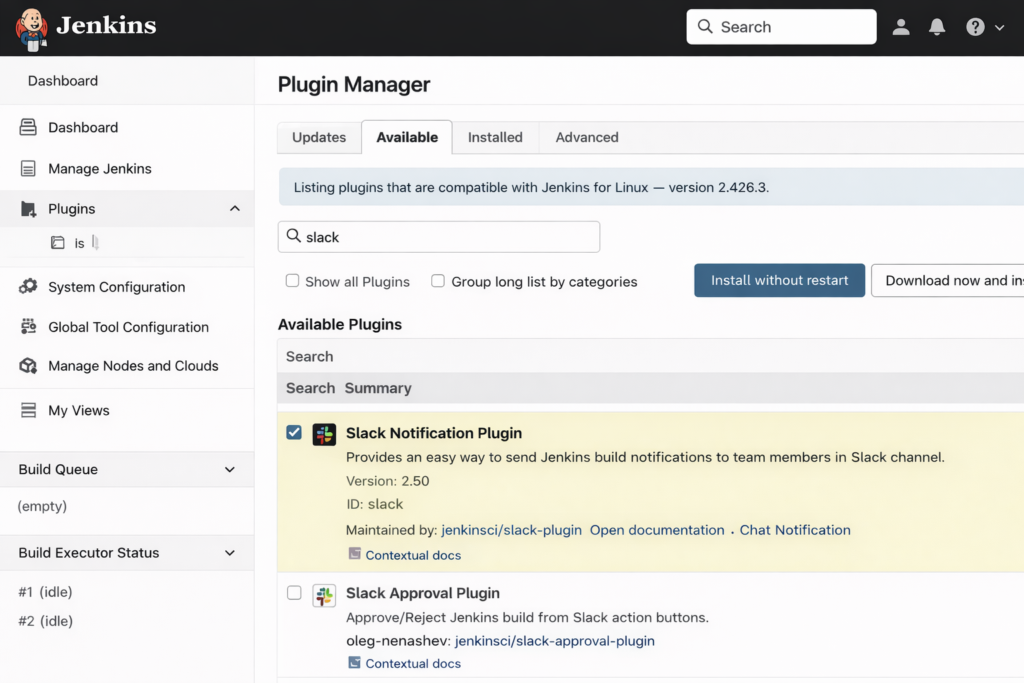
The Slack Notification Plugin enables Jenkins to communicate with Slack.
- Go to Manage Jenkins → Plugins
- Search for Slack Notification
- Install the plugin
- Restart Jenkins if prompted
Configuring Slack Notifications in Jenkins (Step-by-Step)
After installing Jenkins and setting up the Slack app, the next step is to configure everything inside the Jenkins dashboard. These steps explain exactly how to integrate Slack using the Jenkins UI.
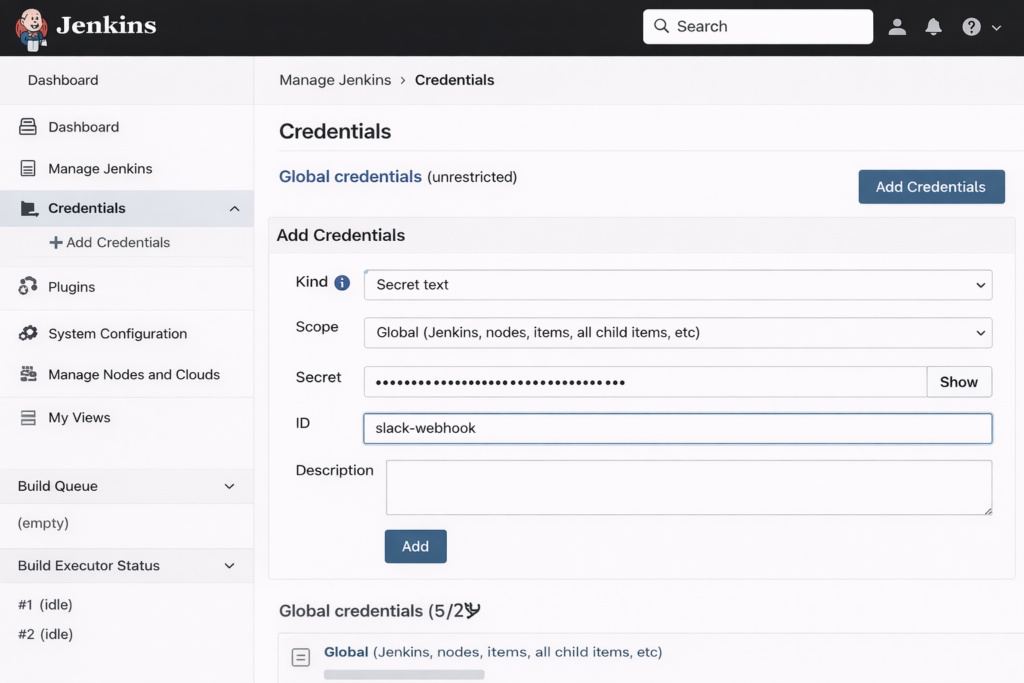
Step 1: Add Slack Webhook as Jenkins Credential
- From the Jenkins dashboard, go to Manage Jenkins.
- Click Credentials.
- Choose Global → Add Credentials.
- Select Kind: Secret Text.
- Paste the Slack Incoming Webhook URL.
- Provide an ID (example: slack-webhook) and save.
Storing the webhook as a credential keeps sensitive information secure.
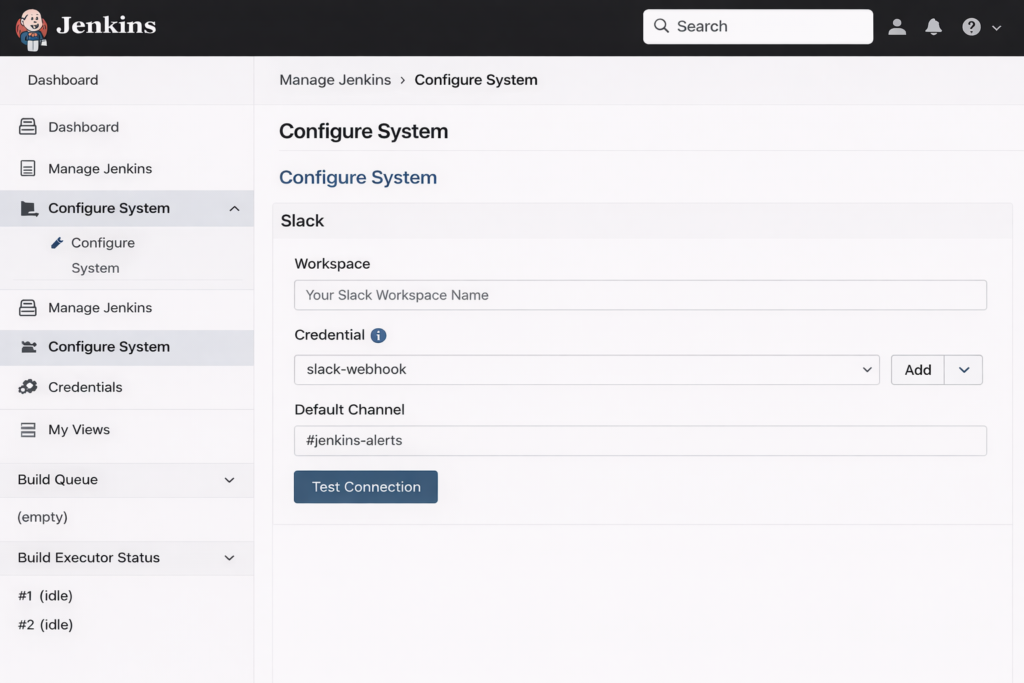
Step 2: Configure Slack in Jenkins System Settings
- Go to Manage Jenkins → Configure System.
- Scroll down to the Slack section.
- Enter the Workspace name.
- Select the Slack credential created earlier.
- Set the Default Channel (example: #jenkins-alerts).
- Click Test Connection to verify the setup.
- Click Save.
A successful test confirms Jenkins can communicate with Slack.
Step 3: Create a Simple Jenkins Pipeline Job
After configuring Slack, create a simple pipeline to test the integration.
- From the Jenkins dashboard, click New Item
- Enter a job name (example: slack-pipeline-test)
- Select Pipeline
- Click OK
This pipeline will be used to trigger Slack notifications.
Step 4: Add a Simple Pipeline Script
In the Pipeline section, paste the following script:
pipeline {
    agent any

    stages {
        stage('Build') {
            steps {
                echo 'Jenkins pipeline executed successfully'
            }
        }
    }
}
This pipeline runs a basic build stage and completes successfully.
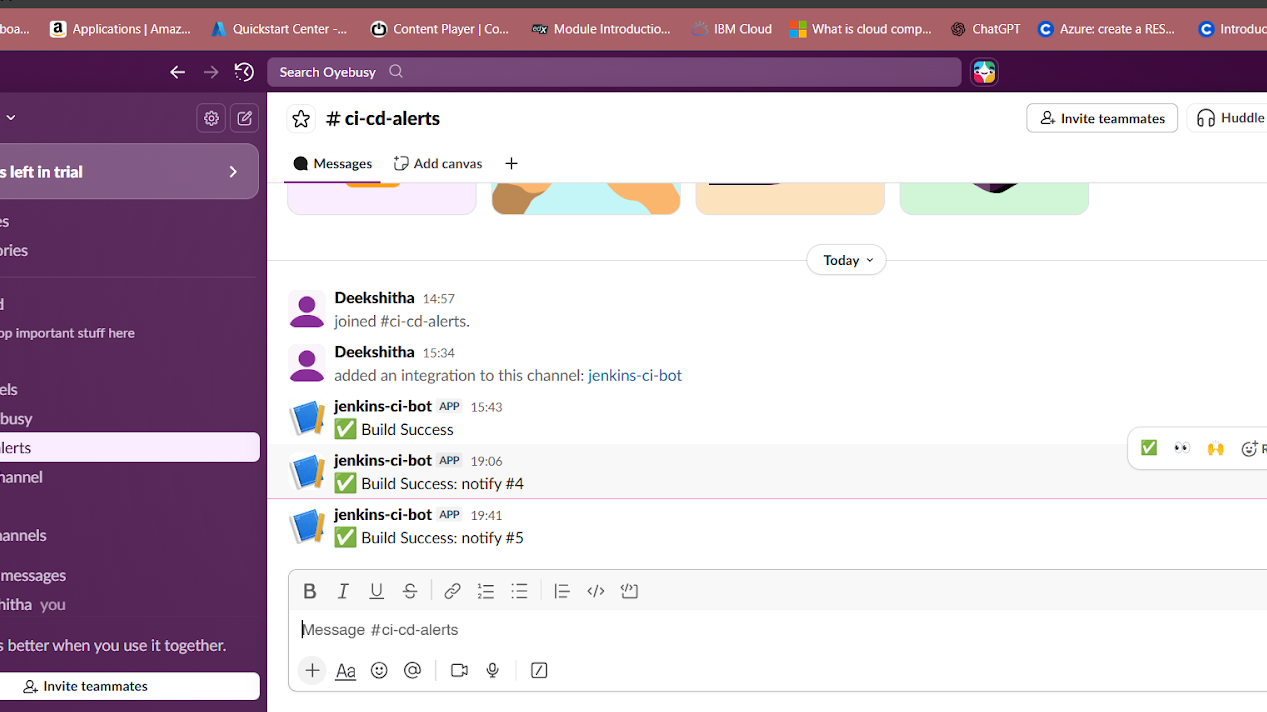
Step 5: Test the Integration
- Open the Jenkins job.
- Click Build Now.
- Check the configured Slack channel.
If configured correctly, Jenkins will send a build notification to Slack immediately.
Common Issues and Troubleshooting
- Jenkins not loading → Check port 8080 security group rule
- Slack notification not received → Verify webhook URL
- Jenkins service stopped → Check system status and logs
Most issues can be resolved by reviewing configuration and permissions.
Conclusion
You have successfully integrated Slack with Jenkins on AWS EC2. Now, your CI/CD pipeline automatically sends real-time build notifications to your Slack channel.
As a result, your team gains faster feedback, better visibility, and improved collaboration.
This integration is more than a simple notification setup. It represents a shift toward a modern DevOps workflow where automation and communication work together seamlessly.
Now that your Jenkins server sends real-time alerts, you can expand further by:
- Adding Docker build stages
- Configuring automated test reports
- Implementing deployment pipelines
- Integrating Kubernetes
DevOps is a continuous journey. With Jenkins and Slack connected, you are one step closer to building production-ready automation systems.
