
Introduction
Modern cloud applications cannot depend on a single server. Traffic fluctuates, hardware fails, and demand grows unexpectedly. If your system cannot scale automatically, users experience downtime. In this guide, you will learn how to build a production-grade Auto Scaling architecture on AWS using Terraform.
This tutorial walks through creating a Launch Template, an Auto Scaling Group, and an Application Load Balancer. You will also understand what happens behind the scenes during scaling events. By the end, you will have a self-healing, highly available system running Ubuntu EC2 instances.
Understanding the Architecture Before Writing Code
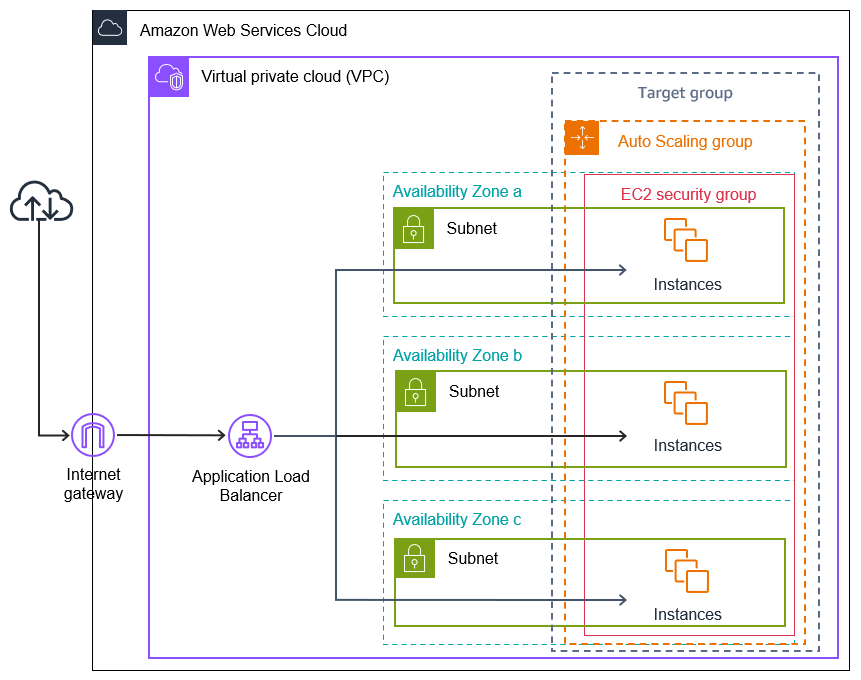
Cloud infrastructure becomes powerful when components work together. Instead of launching a single EC2 instance, we design a system where multiple instances run behind a Load Balancer. An Auto Scaling Group maintains the desired number of instances at all times. If one instance fails, AWS automatically replaces it.
The final architecture looks like this:
User → Application Load Balancer → Target Group → Auto Scaling Group → EC2 Instances
This setup ensures high availability and zero downtime.
Configure the AWS Provider
Start by configuring the AWS provider in Terraform. This defines the region where resources will be created.
provider "aws" {
  region = "ap-south-1"
}
Terraform now knows where to provision infrastructure.
Fetch the Latest Ubuntu AMI Dynamically
Avoid hardcoding AMI IDs because they vary by region. Instead, fetch the latest Ubuntu 22.04 image dynamically.
data "aws_ami" "ubuntu" {
  most_recent = true
  owners      = ["099720109477"]

  filter {
    name   = "name"
    values = ["ubuntu/images/hvm-ssd/ubuntu-jammy-22.04-amd64-server-*"]
  }

  filter {
    name   = "virtualization-type"
    values = ["hvm"]
  }
}
This ensures your instances always use the latest official Ubuntu image.
Create a Launch Template
A Launch Template acts as a blueprint for EC2 instances. The Auto Scaling Group uses this template whenever it needs to create a new instance.
resource "aws_launch_template" "ubuntu_template" {
  name_prefix   = "ubuntu-asg-template-"
  image_id      = data.aws_ami.ubuntu.id
  instance_type = "t2.micro"
  key_name      = "adikey"

  vpc_security_group_ids = [aws_security_group.ec2_sg.id]

  block_device_mappings {
    device_name = "/dev/xvda"

    ebs {
      volume_size = 10
      volume_type = "gp3"
    }
  }

  user_data = base64encode(<<-EOF
              #!/bin/bash
              apt update -y
              apt install -y apache2
              systemctl start apache2
              systemctl enable apache2
              echo "<h1>Instance from Auto Scaling 🚀</h1>" > /var/www/html/index.html
              EOF
  )
}
The user data script installs Apache automatically. Each instance becomes ready without manual configuration.
Create the Auto Scaling Group
The Auto Scaling Group ensures that two instances always run. If one terminates, AWS launches another.
resource "aws_autoscaling_group" "ubuntu_asg" {
  name                 = "ubuntu-auto-scaling-group"
  min_size             = 1
  desired_capacity     = 2
  max_size             = 3
  vpc_zone_identifier  = data.aws_subnets.default.ids

  target_group_arns = [aws_lb_target_group.tg.arn]
  health_check_type = "ELB"

  launch_template {
    id      = aws_launch_template.ubuntu_template.id
    version = "$Latest"
  }

  tag {
    key                 = "Name"
    value               = "AutoScalingInstance"
    propagate_at_launch = true
  }
}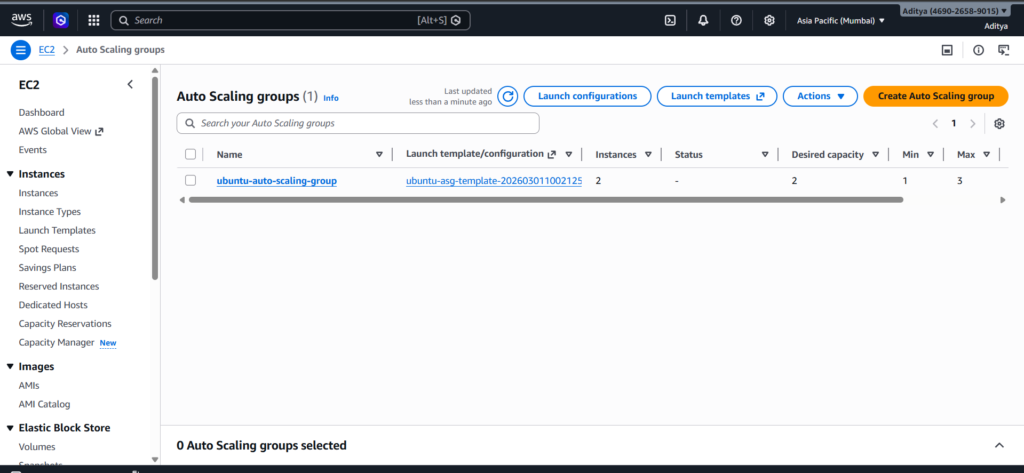
At this point, AWS maintains capacity automatically. If you terminate one instance manually, the system immediately replaces it.
Create the Application Load Balancer
The Load Balancer distributes incoming traffic across all healthy instances.
resource "aws_lb" "alb" {
  name               = "ubuntu-asg-alb"
  load_balancer_type = "application"
  subnets            = data.aws_subnets.default.ids
  security_groups    = [aws_security_group.alb_sg.id]
}
The Load Balancer provides a stable DNS endpoint. Users never interact with individual EC2 instances directly.
Create the Target Group
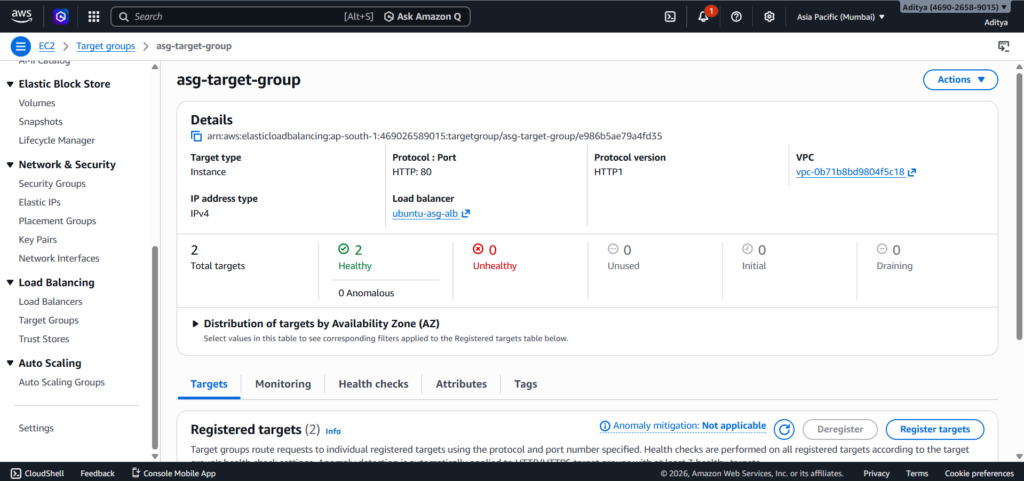
The Target Group connects the Load Balancer to EC2 instances and performs health checks.
resource "aws_lb_target_group" "tg" {
  name     = "asg-target-group"
  port     = 80
  protocol = "HTTP"
  vpc_id   = data.aws_vpc.default.id

  health_check {
    path                = "/"
    protocol            = "HTTP"
    matcher             = "200"
    interval            = 30
    timeout             = 5
    healthy_threshold   = 2
    unhealthy_threshold = 2
  }
}
The health check ensures that traffic routes only to healthy servers.
Create a Listener
The Listener tells the Load Balancer how to handle incoming requests.
resource "aws_lb_listener" "listener" {
  load_balancer_arn = aws_lb.alb.arn
  port              = 80
  protocol          = "HTTP"

  default_action {
    type             = "forward"
    target_group_arn = aws_lb_target_group.tg.arn
  }
}
Now the entire flow becomes operational.
Testing the Architecture
After running:
terraform init
terraform apply
Open the Load Balancer DNS name in your browser. You should see:
“Instance from Auto Scaling 🚀”
Terminate one instance from the AWS Console. Watch how Auto Scaling automatically launches a new instance. The Load Balancer continues serving traffic without interruption.
This behavior proves that your system is fault tolerant and production-ready.
Final Thoughts
You have now built a fully automated, self-healing AWS infrastructure using Terraform. This architecture demonstrates modern cloud best practices, including dynamic AMI selection, Launch Templates, Auto Scaling Groups, health checks, and Load Balancing.
Understanding how these components interact gives you a strong foundation in cloud architecture and DevOps engineering. From here, you can extend the setup with CPU-based scaling policies, HTTPS configuration, and private subnets for even stronger security.
Conclusion
Building an AWS Auto Scaling architecture with Terraform transforms the way you think about infrastructure. Instead of managing individual servers, you design systems that manage themselves. In this guide, you created a Launch Template that defines how instances should be configured, an Auto Scaling Group that maintains the required capacity, and an Application Load Balancer that intelligently distributes traffic across healthy instances. Together, these components form a resilient, production-grade environment.
The real power of this setup becomes visible during failure scenarios. When you terminated an instance manually, AWS immediately launched a replacement without any manual intervention. The Load Balancer continued serving requests, and users experienced no downtime. This behavior demonstrates fault tolerance, high availability, and horizontal scalability — the core pillars of modern cloud architecture.
Using Terraform ensures that the entire infrastructure remains version-controlled, repeatable, and consistent across environments. Instead of clicking through the AWS Console, you defined every resource declaratively. This approach reduces configuration drift, improves collaboration, and aligns with DevOps best practices.
Most importantly, this architecture is not limited to small projects. The same pattern scales to enterprise applications handling millions of users. By combining Launch Templates, Auto Scaling Groups, health checks, and Load Balancers, you built a foundation that mirrors real-world production systems.
From here, you can enhance this setup further by adding dynamic scaling policies based on CPU utilization, enabling HTTPS with SSL certificates, implementing private subnets for improved security, or integrating monitoring and logging tools. Each improvement builds on the solid architecture you now understand.
