
Introduction
Automating backups is a critical part of building reliable cloud systems, and one of the most effective ways to do this is to automate AWS Backup using Lambda. In modern DevOps workflows, manual backups are not only inefficient but also risky, especially when infrastructure changes frequently.
In this guide, we will show you how to automate AWS Backup using Lambda in a practical, real-world scenario. You will learn how to trigger backup jobs programmatically, configure IAM roles correctly, and handle common issues that arise when working with AWS services.
By the end of this tutorial, you will have a fully working setup to automate AWS Backup using Lambda, along with a deeper understanding of how AWS Backup behaves in real environments.
Why Automate AWS Backups?
Cloud infrastructure is constantly changing. Instances are updated, volumes are modified, and deployments happen frequently. In such an environment, manual backups are not scalable.
Automating backups ensures consistency and reliability. It also allows you to integrate backup processes into CI/CD pipelines, meaning you can trigger a backup before making critical changes. This reduces the risk of data loss and makes recovery much easier.
Using Lambda for this adds flexibility, as you can trigger backups programmatically rather than relying only on predefined schedules.
Understanding the Architecture
The setup involves three key components working together.
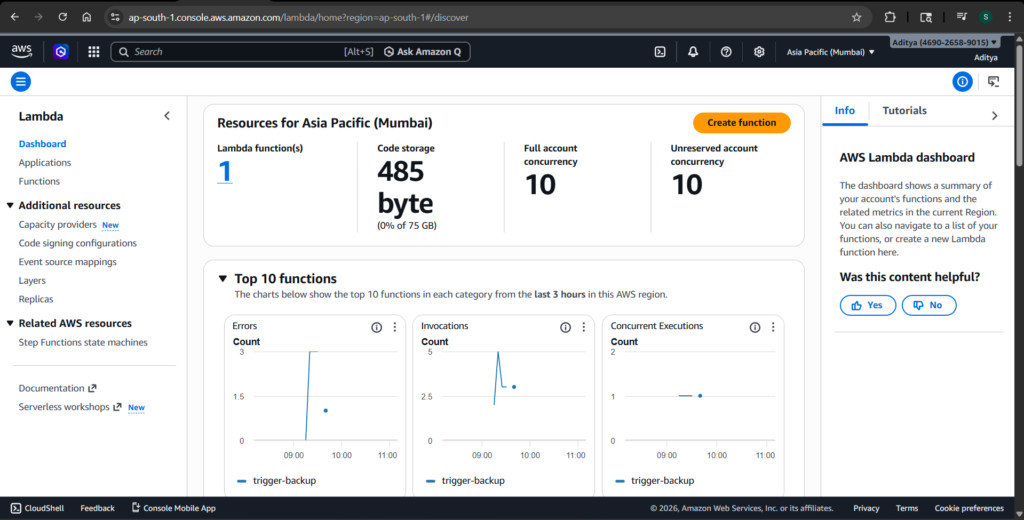
AWS Lambda acts as the execution layer that runs your code and triggers backup jobs. AWS Backup is responsible for managing and storing the backups. IAM roles act as the bridge between these services, ensuring that Lambda has permission to request backup operations securely.
This combination creates a powerful automation system that can be extended further with scheduling or pipeline integrations.
Setting Up the Backup Vault
The first step is to create a backup vault in AWS Backup. This vault is where your backups will be stored.
While this step seems simple, it is critical to ensure that the vault is created in the same region as your resources and Lambda function. A region mismatch can cause failures that are difficult to debug, as AWS often does not provide clear error messages in such cases.
Configuring IAM Permissions
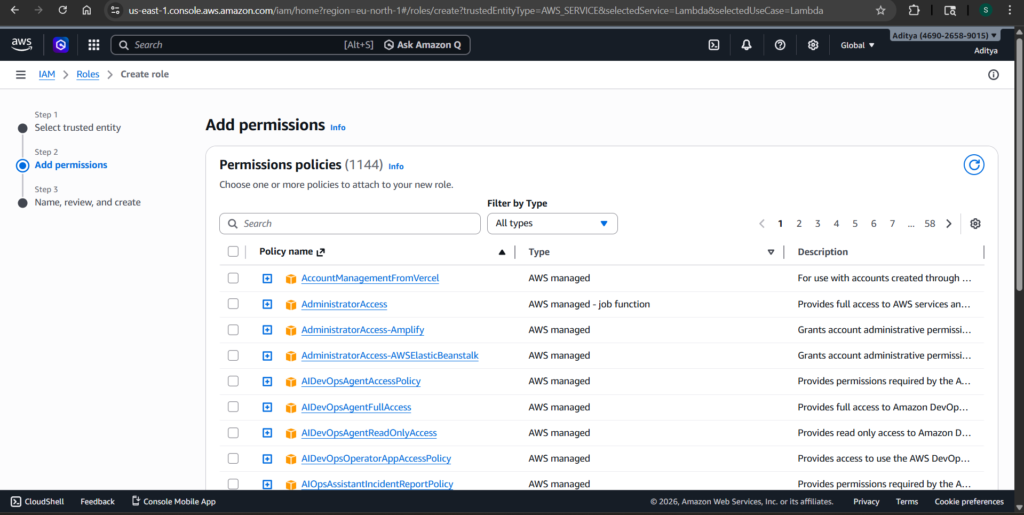
IAM is where most of the complexity lies in this setup. The Lambda function needs permission not only to call AWS Backup but also to pass a service role that AWS Backup will use internally.
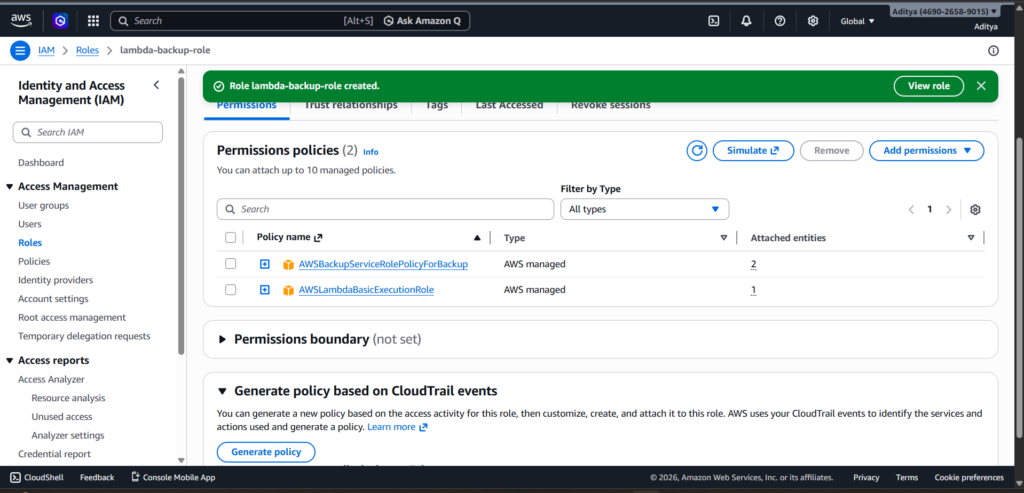
You need to attach basic execution permissions so Lambda can log to CloudWatch. You also need backup permissions so it can initiate backup jobs. However, the most important permission is iam:PassRole.
Without iam:PassRole, AWS will throw an AccessDenied error even if everything else appears correct. This is because Lambda must explicitly be allowed to pass the AWS Backup service role during execution.
Ensuring the AWS Backup Service Role Exists
AWS Backup relies on a service role called AWSBackupDefaultServiceRole. This role must exist and have the correct trust relationship with the backup service.
If this role is missing or misconfigured, backup jobs may fail silently or never appear in the console. Verifying this role early can save a lot of debugging time later.
Creating the Lambda Function
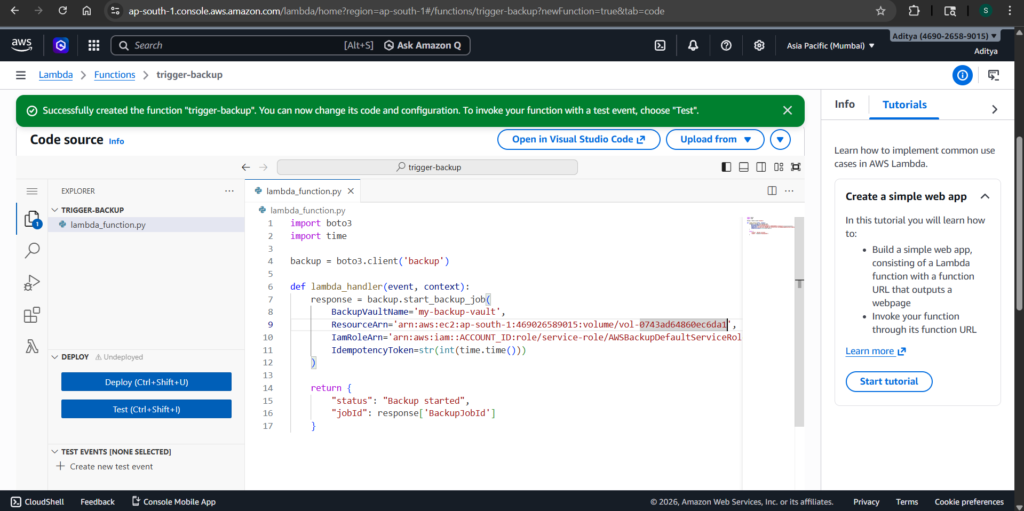
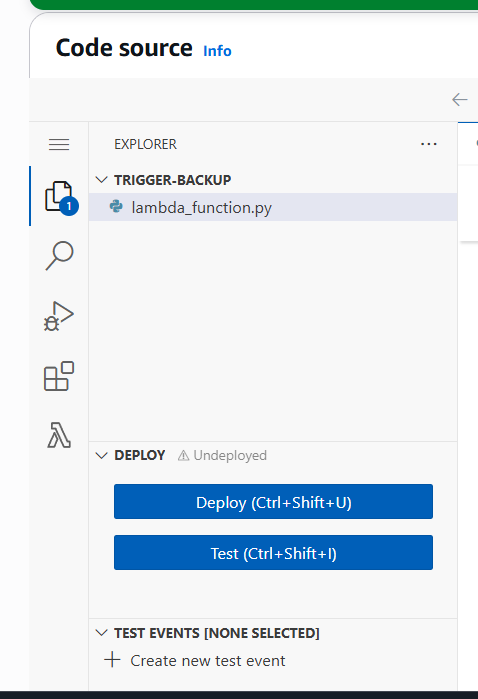
Once IAM is properly configured, you can create your Lambda function. This function will use the AWS SDK (Boto3) to call the backup API and start a backup job.
Here is the working code:
import boto3
import timebackup = boto3.client('backup', region_name='ap-south-1')def lambda_handler(event, context):
    response = backup.start_backup_job(
        BackupVaultName='my-backup-vault',
        ResourceArn='arn:aws:ec2:ap-south-1:ACCOUNT_ID:volume/VOLUME_ID',
        IamRoleArn='arn:aws:iam::ACCOUNT_ID:role/service-role/AWSBackupDefaultServiceRole',
        IdempotencyToken=str(int(time.time()))
    )

    return {
        "status": "Backup started",
        "jobId": response['BackupJobId']
    }
Make sure to replace the account ID and resource identifiers with your actual values.
Testing the Setup
After deploying the Lambda function, you can trigger it using a test event. If everything is configured correctly, the function will return a response containing a backup job ID.
At this point, it’s important to understand that AWS Backup does not always show jobs instantly. The system works asynchronously, so there may be a delay before the job appears in the console.
Common Issues and What They Teach You
During this setup, several issues can arise that are worth understanding deeply.
One of the most common problems is region mismatch. If your Lambda function, backup vault, and resources are not in the same region, the system may fail without clear feedback.
Another frequent issue is missing iam:PassRole. This is a subtle but critical permission that often causes AccessDenied errors even when everything else looks correct.
You might also encounter situations where the Lambda function returns a job ID but no job appears in AWS Backup. This is usually due to the asynchronous nature of the service. Waiting for a short period often resolves this.
These challenges are not just obstacles—they are valuable learning experiences that reflect real-world DevOps scenarios.
Key Takeaways
This setup highlights the importance of understanding IAM permissions in depth. It also shows how critical region consistency is across AWS services. Additionally, it demonstrates how asynchronous systems can affect debugging and testing.
These are the kinds of insights that go beyond basic tutorials and prepare you for real-world cloud engineering tasks.
Conclusion
Automating AWS backups using Lambda provides a flexible and powerful solution for managing data protection. While the setup involves navigating IAM complexities and AWS-specific quirks, the result is a system that can be integrated into modern DevOps workflows.
Once implemented, you can trigger backups programmatically, ensuring that your infrastructure remains resilient and secure.
