
Introduction
In modern DevOps, GitOps has become a standard way to deploy applications.
Instead of manually deploying code, we use Git as the single source of truth, and tools like Argo CD automatically deploy changes to Kubernetes.
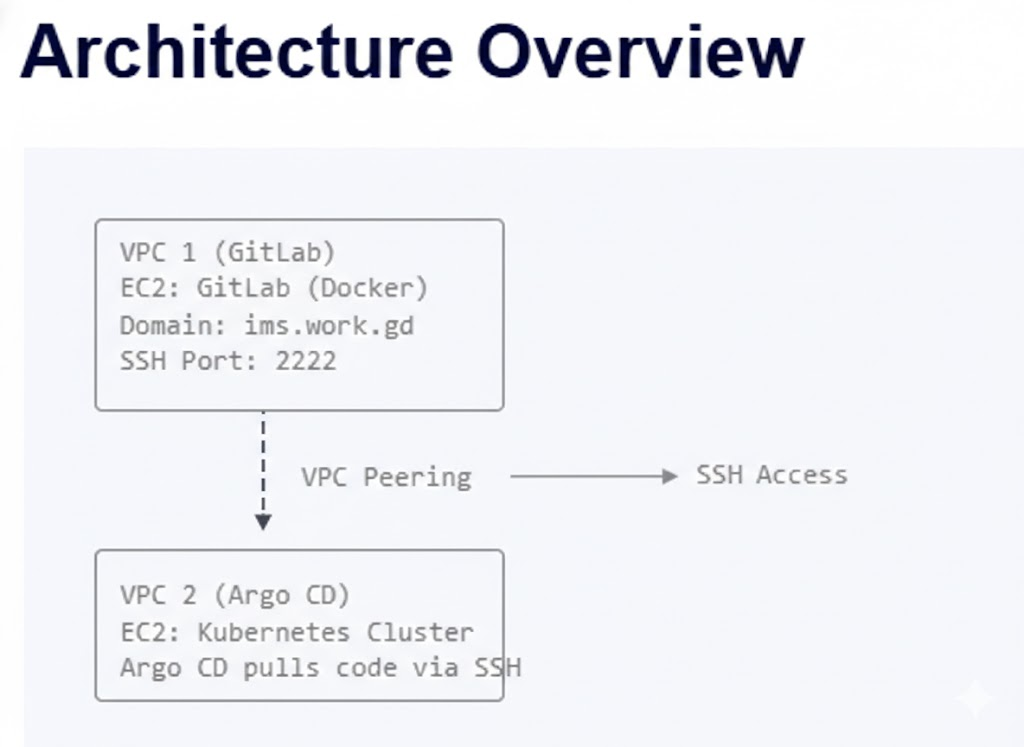
In this project, I built a real-world GitOps architecture using:
- Self-hosted GitLab on AWS EC2
- Argo CD running on a Kubernetes cluster
- Secure SSH-based repository access
- VPC peering between two separate environments
This setup simulates how real organizations separate source control and deployment infrastructure across networks.
Tools and Technologies Used
- AWS EC2
- Amazon VPC Peering
- Docker
- GitLab CE
- Kubernetes
- Helm
- Argo CD
- SSH-based authentication
Step 1: Launch GitLab EC2 Instance
Instance details
| Setting | Value |
|---|---|
| AMI | Amazon Linux |
| Instance type | t2.medium |
| Storage | 30 GB |
| Ports | 22, 80, 443, 2222 |
Step 2: Install Docker on GitLab EC2
sudo dnf update -y
sudo dnf install docker -y
sudo systemctl start docker
sudo systemctl enable docker
sudo usermod -aG docker ec2-user
Logout and login again.
Step 3: Create GitLab Directory
sudo mkdir -p /srv/gitlab
sudo mkdir -p /srv/gitlab/config
sudo mkdir -p /srv/gitlab/logs
sudo mkdir -p /srv/gitlab/data
Set permissions:
sudo chown -R ec2-user:ec2-user /srv/gitlab
Step 4: Run GitLab container
docker run -d \
  --hostname ims.work.gd \
  -p 80:80 \
  -p 443:443 \
  -p 2222:22 \
  --name gitlab \
  --restart always \
  -v /srv/gitlab/config:/etc/gitlab \
  -v /srv/gitlab/logs:/var/log/gitlab \
  -v /srv/gitlab/data:/var/opt/gitlab \
  gitlab/gitlab-ce:latest
Wait 5–10 minutes.
Step 5: Get GitLab root password
docker exec -it gitlab grep 'Password:' /etc/gitlab/initial_root_password
Login:
http://<EC2-PUBLIC-IP>
Username: root
Password: <password>
Step 5.1: Reset GitLab Root Password (If Login Fails)
Sometimes the initial root password may not work due to:
- Password expiration
- Container restart
- Copy–paste errors
- First-time setup issues
In that case, you can reset the root password directly inside the GitLab container.
Step A) Enter the GitLab container
docker exec -it gitlab bash
Step B) Open GitLab Rails console
Inside the container:
gitlab-rails console
Wait 1–2 minutes for the console to load.
Step C) Reset the root password
Run the following commands:
user = User.find_by_username('root')
user.password = 'NewPassword@123'
user.password_confirmation = 'NewPassword@123'
user.save!
If successful, you will see:
=> true
Step D) Exit the console
Type:
exit
Then exit the container:
exitStep 6: Configure domain
Edit config:
sudo nano /srv/gitlab/config/gitlab.rb
Set:
external_url 'http://ims.work.gd'
Apply config:
docker exec -it gitlab gitlab-ctl reconfigure
docker restart gitlab
Now access:
http://ims.work.gd
Step 7: Launch Argo CD EC2 (different VPC)
| Setting | Value |
|---|---|
| AMI | Ubuntu |
| Instance | t2.medium |
| VPC | Separate from GitLab |
Install Kubernetes (example using kind or k3s).
Step 8: Install Argo CD via Helm
Add Helm repo
helm repo add argo https://argoproj.github.io/argo-helm
helm repo update
Create namespace
kubectl create namespace argocd
Install Argo CD
helm install argocd argo/argo-cd -n argocd
Step 9: Access Argo CD UI
Port forward:
kubectl port-forward svc/argocd-server -n argocd 8080:443
Open:
https://localhost:8080
Step 10: Get Argo CD admin password
kubectl get secret argocd-initial-admin-secret \
-n argocd \
-o jsonpath="{.data.password}" | base64 -d
Login:
Username: admin
Password: <password>
Step 11: Configure VPC Peering
Example CIDRs
| VPC | CIDR |
|---|---|
| GitLab VPC | 172.31.0.0/16 |
| Argo CD VPC | 10.0.0.0/16 |
Route table entries
Argo CD VPC route table
| Destination | Target |
|---|---|
| 172.31.0.0/16 | pcx-id |
GitLab VPC route table
| Destination | Target |
|---|---|
| 10.0.0.0/16 | pcx-id |
Security group rule (GitLab)
Allow SSH from Argo CD VPC:
| Type | Port | Source |
|---|---|---|
| TCP | 2222 | 10.0.0.0/16 |
Step 12: Generate SSH key on Argo CD server
ssh-keygen -t ed25519 -C "argocd" -f argocd_gitlab
Step 13: Add SSH key to GitLab
On GitLab:
Profile → SSH Keys
Add:
cat argocd_gitlab.pub
Step 14: Test SSH from Argo CD server
ssh -i argocd_gitlab -T git@ims.work.gd -p 2222
Expected:

Step 15: Install Argo CD CLI
curl -sSL -o argocd \
https://github.com/argoproj/argo-cd/releases/latest/download/argocd-linux-amd64

chmod +x argocd
sudo mv argocd /usr/local/bin/
Step 16: Login to Argo CD CLI
Start port-forward:
kubectl port-forward svc/argocd-server -n argocd 8080:443
In another terminal:
argocd login localhost:8080 --username admin --password <password> --insecure
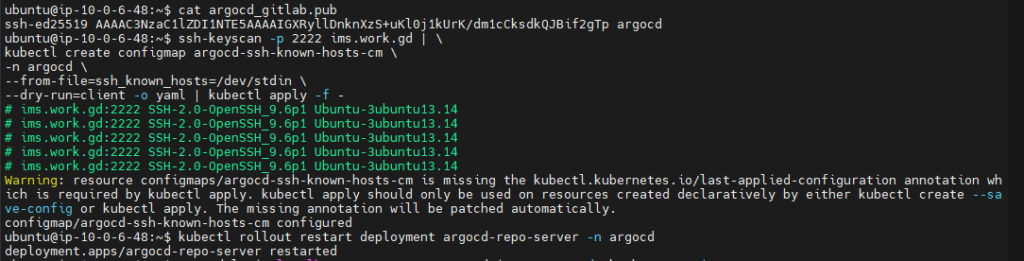
Step 17: Add GitLab host key to Argo CD
ssh-keyscan -p 2222 ims.work.gd | \
kubectl create configmap argocd-ssh-known-hosts-cm \
-n argocd \
--from-file=ssh_known_hosts=/dev/stdin \
--dry-run=client -o yaml | kubectl apply -f -
Restart repo server:
kubectl rollout restart deployment argocd-repo-server -n argocd
Step 18: Add repository to Argo CD
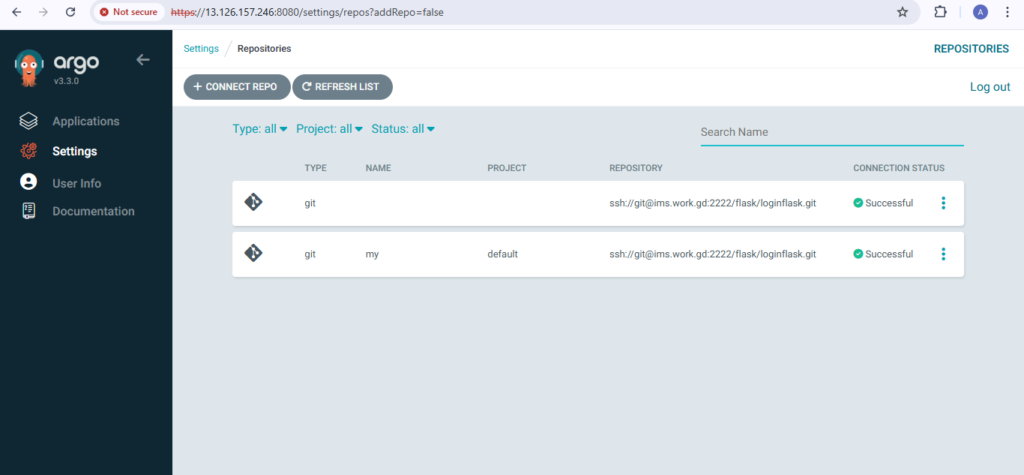
argocd repo add ssh://git@ims.work.gd:2222/flask/loginflask.git \
--ssh-private-key-path argocd_gitlab

Verify:
argocd repo list
Expected:
STATUS: Successful
Step 19: Create Argo CD application
Example:
argocd app create flask-app \
  --repo ssh://git@ims.work.gd:2222/flask/loginflask.git \
  --path k8s \
  --dest-server https://kubernetes.default.svc \
  --dest-namespace default
Sync:
argocd app sync flask-app
Final Result
You now have:
- Self-hosted GitLab on EC2
- Argo CD in another VPC
- VPC peering between environments
- SSH-based secure repo access
Conclusion
This project demonstrates a complete, production-style GitOps pipeline on AWS using self-hosted GitLab and Argo CD across multiple VPCs. By separating source control and deployment infrastructure, the setup closely mirrors how real organizations design secure and scalable DevOps environments.
Through this implementation, GitLab acts as the single source of truth, while Argo CD continuously monitors the repository and automatically syncs application changes to Kubernetes. SSH-based authentication ensures secure repository access, and VPC peering enables controlled, private communication between isolated environments without exposing services publicly.
Overall, this architecture highlights the core benefits of GitOps: automation, consistency, security, and traceability. It provides a strong foundation that can be further extended with features like RBAC, secrets management, multi-cluster deployments, monitoring, and CI integration—making it suitable for both learning and real-world production use.
