

Introduction
Modern CI/CD pipelines demand scalability and separation of responsibilities. Instead of running all jobs on a single machine, you can distribute workloads across multiple GitLab runners. This approach improves performance, reliability, and maintainability.
In this guide, you will learn how to implement a GitLab multi-runner architecture using two AWS EC2 instances. One runner handles build and test jobs, while the second runner manages Docker build, push, and deployment.
What Is GitLab Multi-Runner Architecture?
GitLab allows you to register multiple runners for a single project. Each runner can handle specific jobs using tags. As a result, you can distribute workloads efficiently.
In this setup:
- Runner 1 (Shell Executor) handles build and test
- Runner 2 (Docker Executor) handles Docker build, push, and deployment
This separation ensures clean responsibility boundaries.
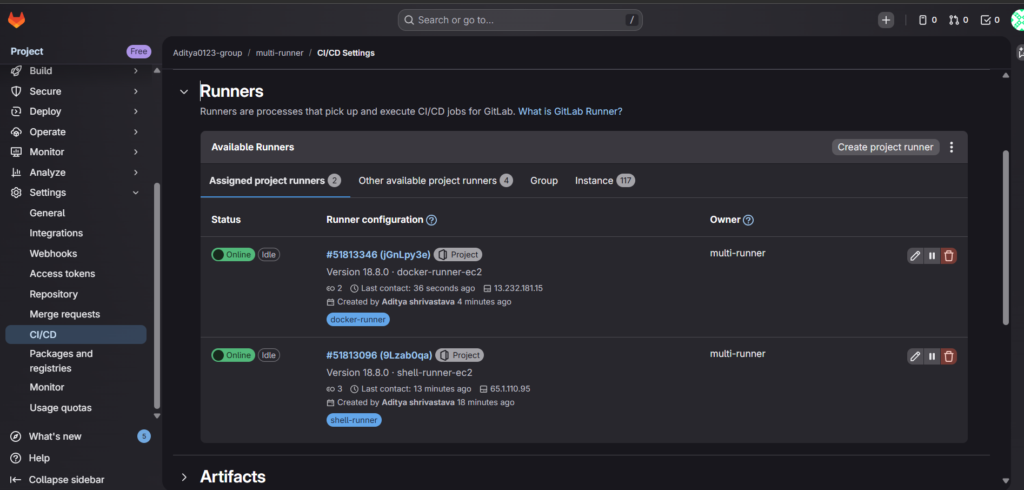
Architecture Overview
The pipeline follows this execution flow:
Git Push
   ↓
Build (Shell Runner)
   ↓
Test (Shell Runner)
   ↓
Docker Build & Push (Docker Runner)
   ↓
Deploy (Docker Runner)
Because each job uses tags, GitLab routes it to the appropriate runner automatically.
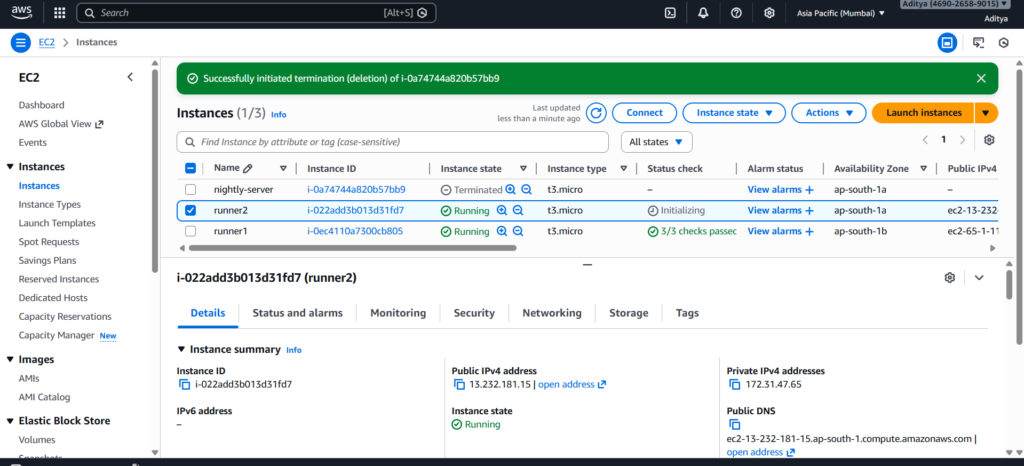
Launch Two EC2 Instances
Start by creating two Ubuntu 24.04 EC2 instances:
- EC2-1 → For shell runner
- EC2-2 → For docker runner
Allow SSH access and ensure internet connectivity.
Install and Register Shell Runner
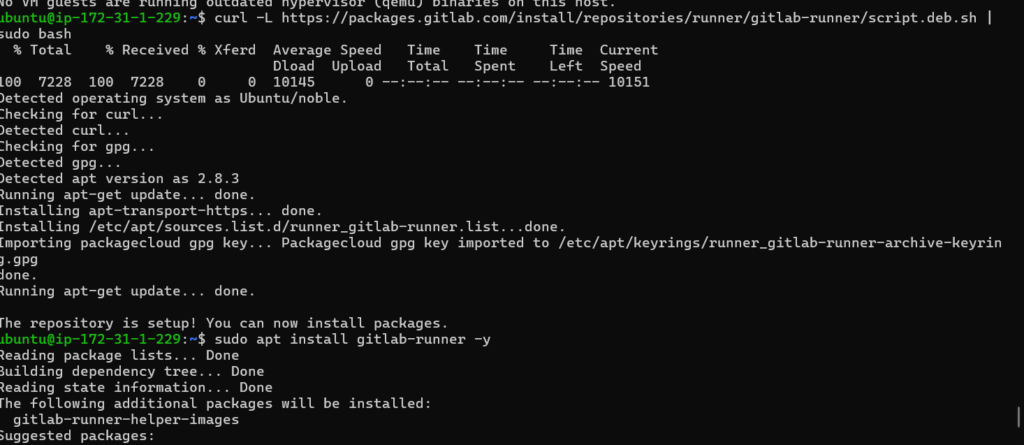
First, install GitLab Runner on EC2-1:
curl -L https://packages.gitlab.com/install/repositories/runner/gitlab-runner/script.deb.sh | sudo bash
sudo apt install gitlab-runner -y
Then register the runner:
sudo gitlab-runner registerUse:
- Executor:
shell - Tag:
shell-runner
After registration, verify:
sudo gitlab-runner verifyOnce verified, GitLab should display the runner as online.
Install Docker and Docker Runner
Next, move to EC2-2 and install Docker:
sudo apt install docker.io -y
sudo systemctl start docker
sudo systemctl enable docker
Now install GitLab Runner:
sudo apt install gitlab-runner -yRegister the docker runner:
sudo gitlab-runner registerUse:
- Executor:
docker - Default image:
docker:latest - Tag:
docker-runner
Enable Privileged Mode
Docker-in-Docker requires privileged mode. Open:
sudo nano /etc/gitlab-runner/config.tomlModify:
[runners.docker]
  image = "docker:latest"
  privileged = true
Restart the runner:
sudo gitlab-runner restartNow the Docker runner can build and push images successfully.
Configure .gitlab-ci.yml
Create the following pipeline file:
stages:
  - build
  - test
  - docker
  - deploy

build:
  stage: build
  tags:
    - shell-runner
  script:
    - echo "Building application..."

test:
  stage: test
  tags:
    - shell-runner
  script:
    - echo "Running tests..."

docker_build_push:
  stage: docker
  tags:
    - docker-runner
  script:
    - echo "Building Docker image..."
    - echo "Pushing image to registry..."

deploy:
  stage: deploy
  tags:
    - docker-runner
  script:
    - echo "Deploying container..."
Because each job includes a tag, GitLab routes it to the correct runner.
Why Multi-Runner Architecture Matters
Single-runner pipelines often become bottlenecks. However, distributing jobs across runners improves performance and scalability.
Additionally, separating Docker operations from build environments prevents dependency conflicts. This approach aligns with production-grade DevOps practices.
Common Issues and Fixes
Runner Shows Offline
Always register runners using:
sudo gitlab-runner register
Otherwise, the configuration saves in the wrong directory.
Docker Jobs Stay Pending
Ensure:
- Tags match exactly
- Privileged mode is enabled
- Docker executor is selected
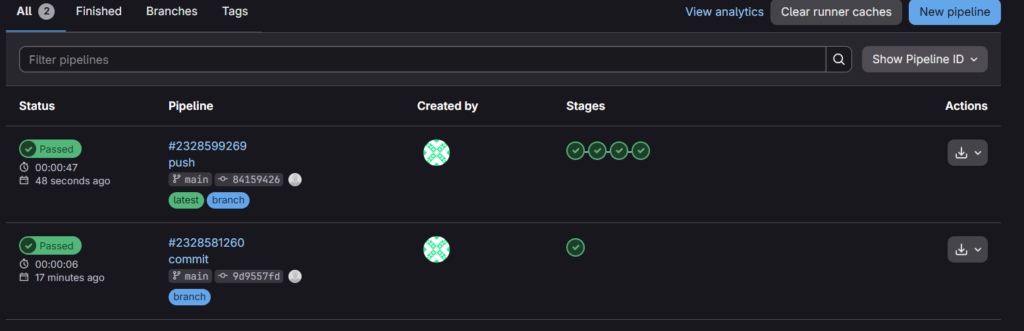
Final Result
After pushing code:
- Build runs on EC2-1
- Test runs on EC2-1
- Docker build runs on EC2-2
- Deployment runs on EC2-2
The pipeline completes successfully with distributed execution
Conclusion
Implementing GitLab multi-runner architecture on AWS EC2 improves scalability, responsibility separation, and execution efficiency. By combining shell and docker executors, you create a flexible CI/CD environment suitable for real-world DevOps workflows.
If you want to scale further, consider adding autoscaling runners or environment-based deployments.
