
Introduction
Most beginners focus only on writing .tf files, but in real-world production environments, stability and reliability depend heavily on how you manage Terraform state. Infrastructure as Code is not just about defining resources — it is about maintaining consistency, preventing conflicts, and ensuring safe collaboration. In this guide, you’ll learn what Terraform state is, the difference between local and remote state, the structure of the Terraform state file, how state locking works, and why remote backends are essential. We will also walk through a practical example using an S3 backend with DynamoDB locking. Let’s begin.
What Is Terraform State?
Terraform state is a file that tracks the real-world infrastructure managed by Terraform. It stores information about the resources Terraform has created, such as their IDs, attributes, and dependencies. Terraform uses this file to compare your configuration with the actual infrastructure and determine what changes need to be made. Without the state file, Terraform would not know what already exists, making it difficult to safely update or manage resources.
When you run:
terraform apply
Terraform creates resources in the cloud. But how does it remember what it created?
It stores that information inside a file called:
terraform.tfstate
This state file:
- Maps Terraform resources to real infrastructure
- Stores metadata
- Tracks dependencies
- Helps Terraform detect changes
Without state, Terraform cannot compare your configuration with existing infrastructure.
Think of the state file as Terraform’s memory.
Why Terraform State Is Important
Terraform uses the state file to plan changes accurately, avoid recreating resources that already exist, track important resource identifiers such as EC2 instance IDs, and manage dependencies between resources properly. By comparing the configuration with the stored state, Terraform determines exactly what needs to be created, updated, or destroyed. If the state file is deleted or becomes corrupted, Terraform may lose track of existing infrastructure and attempt to recreate resources that are already running. In a production environment, this can lead to duplication, conflicts, downtime, or other serious operational issues.
Local vs Remote State
Local State (Default)
By default, Terraform stores state locally in:
terraform.tfstate
Characteristics:
Local Terraform state has several key characteristics. It is stored on your local machine, which means it is tied to a single system. It does not support collaboration, as there is no shared access for team members. There is also no built-in state locking, so multiple people running Terraform at the same time can cause conflicts. Additionally, there is always a risk of accidental deletion or corruption since the file exists only on your device.
Local state works well for learning, personal projects, and small experiments where only one person is managing the infrastructure. However, it does not scale effectively in team environments, where shared access, consistency, and state locking are essential for safe and reliable operations.
Remote State
Remote state stores the Terraform state file in a shared backend such as Amazon Web Services S3, Microsoft Azure Storage, Google Cloud Storage, or Terraform Cloud. Instead of keeping the state file on a single machine, it is stored in a centralized and accessible location.
This setup enables proper team collaboration, as multiple engineers can work on the same infrastructure safely. It provides centralized storage, supports state locking to prevent simultaneous conflicts, improves security through controlled access, and creates a production-ready foundation for managing infrastructure. In real DevOps environments, using remote state is not optional — it is mandatory for reliability, scalability, and safe teamwork.
Terraform State File Structure
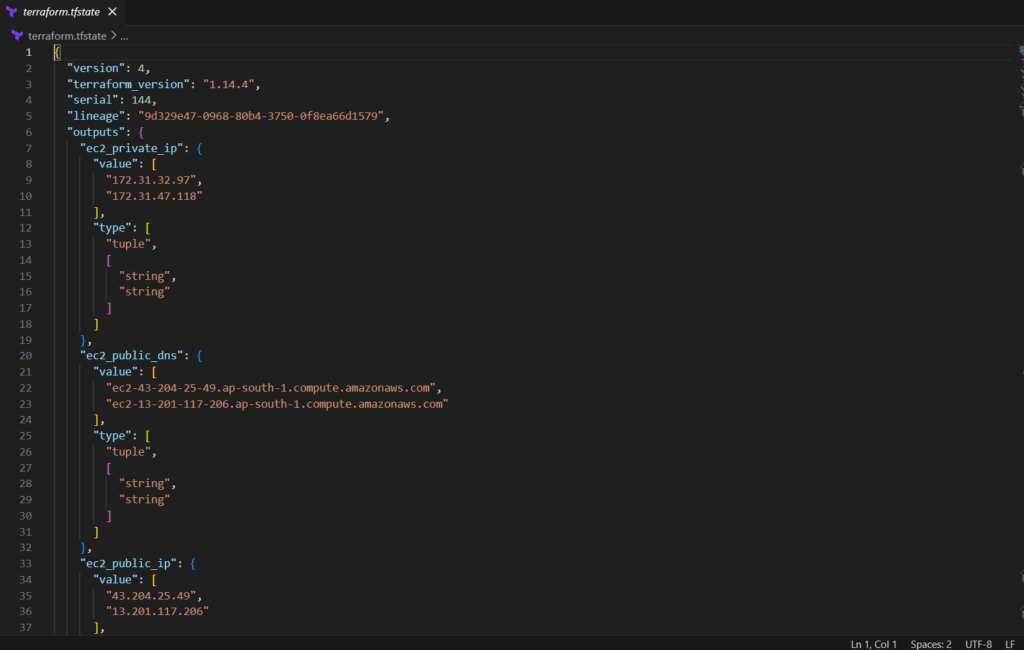
The terraform.tfstate file is written in JSON format.
Here’s a simplified example:
{
  "version": 4,
  "terraform_version": "1.6.0",
  "resources": [
    {
      "type": "aws_instance",
      "name": "web",
      "instances": [
        {
          "attributes": {
            "id": "i-0123456789abcdef0",
            "instance_type": "t2.micro"
          }
        }
      ]
    }
  ]
}
Important Components:
The Terraform state file contains several important components. The version field represents the state file format version. The terraform_version shows which Terraform version was used to generate the state. The resources section lists all the infrastructure managed by Terraform, and within each resource, the attributes store the actual details such as resource IDs, configurations, and metadata.
⚠ You should never edit the state file manually unless absolutely necessary. Manual changes can corrupt the state and lead to serious infrastructure inconsistencies.
What Is State Locking?
Imagine two DevOps engineers running terraform apply at the same time. Without state locking, both processes could attempt to modify the state file simultaneously. This can lead to state corruption, conflicting updates, and inconsistent infrastructure — a serious risk in production environments.
State locking prevents these concurrent modifications. When Terraform acquires a lock, no other user or process can modify the state until the operation is complete. Once Terraform finishes applying the changes, it releases the lock. This mechanism ensures infrastructure safety, consistency, and reliable team collaboration.
Remote Backends in Terraform

A backend defines where Terraform stores its state file. Instead of keeping the state locally, a backend allows you to store it in a shared and reliable location.
Common backends include Amazon Web Services S3, Microsoft Azure (AzureRM), Google Cloud (GCS), Terraform Cloud, and Consul. Each backend provides remote storage capabilities, and some also support state locking and collaboration features.
To configure a backend, you define it inside your Terraform configuration file, typically within the terraform block.
Example:
terraform {
  backend "s3" {
    bucket = "my-terraform-state-bucket"
    key    = "dev/terraform.tfstate"
    region = "ap-south-1"
  }
}
Once configured, Terraform stores state remotely instead of locally.
S3 Backend with DynamoDB Locking (Production Setup)
This is the most common setup in AWS-based environments. In this architecture, Amazon Web Services S3 is used to store the Terraform state file in a centralized and durable location, while Amazon DynamoDB is used to provide state locking.
S3 ensures secure and highly available storage of the state file, and DynamoDB prevents concurrent modifications by locking the state during operations like terraform apply. Together, they create a production-ready, collaborative, and safe infrastructure management setup.

Flow:
- Terraform stores state in S3
- Before applying changes, Terraform checks DynamoDB
- If locked → operation stops
- If unlocked → Terraform proceeds
- Lock releases after completion
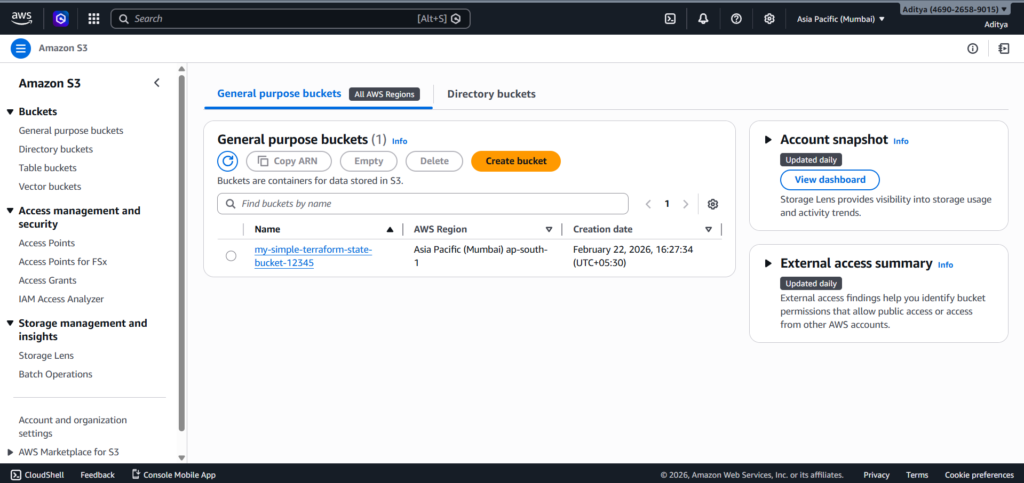
Create S3 Bucket
resource "aws_s3_bucket" "tf_state" {
  bucket = "my-terraform-state-bucket"
}
Enable versioning:
resource "aws_s3_bucket_versioning" "versioning" {
  bucket = aws_s3_bucket.tf_state.id  versioning_configuration {
    status = "Enabled"
  }
}
Versioning protects you from accidental state deletion.
Create DynamoDB Table for Locking
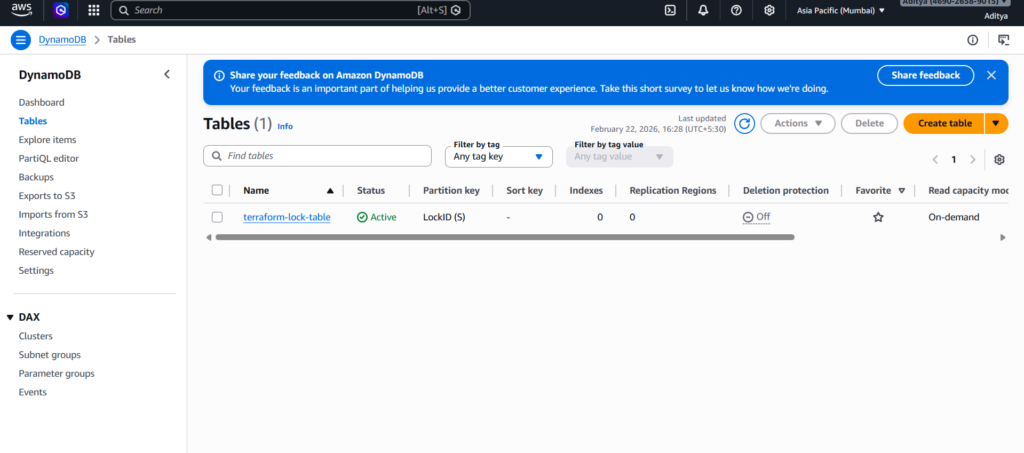
resource "aws_dynamodb_table" "tf_lock" {
  name         = "terraform-locks"
  billing_mode = "PAY_PER_REQUEST"
  hash_key     = "LockID"  attribute {
    name = "LockID"
    type = "S"
  }
}
Terraform uses this table to manage lock records.
Configure Backend
terraform {
  backend "s3" {
    bucket         = "my-terraform-state-bucket"
    key            = "prod/terraform.tfstate"
    region         = "ap-south-1"
    dynamodb_table = "terraform-locks"
    encrypt        = true
  }
}
Then initialize:
terraform init
Terraform will:
- Move state to S3
- Enable locking via DynamoDB
- Encrypt state file
Testing
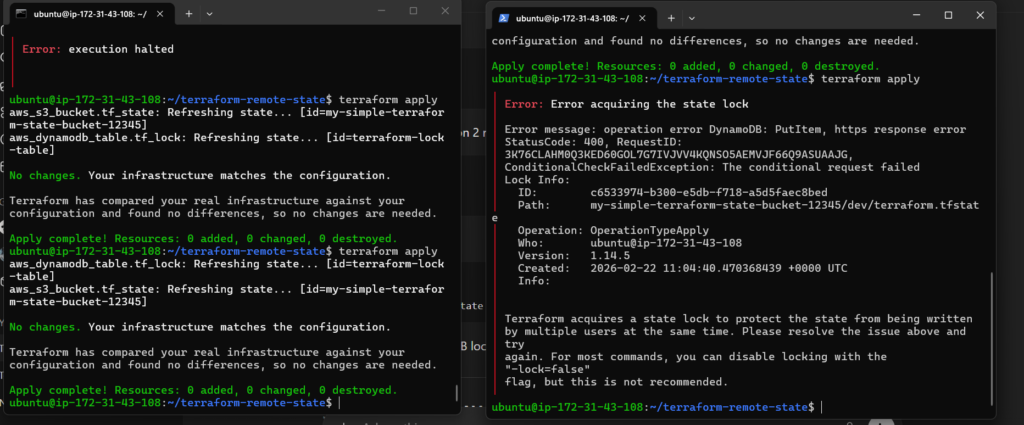
I opened two SSH sessions at the same time and used terraform apply on both of them simultaneously, one succeeded and one got an error because of state locking. Here is the exact result:
Best Practices for Remote State
When managing Terraform state in production, follow these best practices to ensure stability and security. Always enable versioning on your S3 bucket so you can recover previous versions of the state file if something goes wrong. Enable encryption to protect sensitive infrastructure data stored in the state. Use separate state files for different environments such as development, staging, and production to avoid accidental cross-environment changes. Restrict IAM access so only authorized users and services can read or modify the state. Never commit .tfstate files to Git, as they may contain sensitive information. Finally, use Terraform workspaces carefully, ensuring they are properly managed and clearly structured to prevent confusion or misconfiguration.
Final Thoughts
Terraform state management separates beginners from production-ready DevOps engineers.
If you:
- Understand state
- Configure remote backends
- Enable locking
- Protect your state file
You build infrastructure safely and confidently.
Start practicing with S3 + DynamoDB remote backend today. That setup reflects real-world DevOps architecture.
Conclusion
Terraform state is the backbone of infrastructure as code. It acts as Terraform’s memory, allowing it to track resources, detect changes, and apply updates safely.
While local state works for learning and small experiments, real-world DevOps environments demand remote state. Using an S3 backend with DynamoDB locking ensures collaboration, consistency, and protection against state corruption. It prevents concurrent modifications, secures sensitive data, and keeps infrastructure stable.
If you aim to work in production environments, mastering remote state management is not optional — it is essential. Configure your backend properly, enable versioning and encryption, and always use state locking.
Strong infrastructure starts with strong state management.
