
Introduction
In this DevOps assessment, I implemented a fully automated Jenkins Directus deployment on a cloud VM. While the original task was designed for GitLab CI/CD, I chose to implement the solution using Jenkins—demonstrating adaptability and a deeper understanding of CI/CD concepts beyond a single platform.
Consequently, this blog walks through the entire implementation: from infrastructure provisioning with Terraform to deploying Directus via Docker on AWS EC2, all driven by an automated Jenkins pipeline.
Why Automate Jenkins Directus Deployment?
Deploying a headless CMS manually is prone to human error. By using a Jenkins Directus deployment workflow, we ensure that every environment—from staging to production—is identical. Furthermore, this project showcases the integration of “Infrastructure as Code” (IaC) with automated container orchestration.
What We Built
The goal was to create a production-ready Jenkins Directus deployment that handles the heavy lifting of server management. Specifically, we built a pipeline that:
- Provisions cloud infrastructure on AWS using Terraform.
- Deploys the CMS via SSH using Docker Compose.
- Validates the deployment with automated health checks.
- Cleans up infrastructure manually via Jenkins parameters.
Tech Stack
| Tool | Purpose |
|---|---|
| AWS EC2 | Cloud infrastructure |
| Terraform | Infrastructure as Code |
| Jenkins | CI/CD Pipeline |
| Docker & Docker Compose | Container deployment |
| Directus | Headless CMS |
| PostgreSQL | Database |
| GitHub | Source code repository |
Architecture Overview
Developer (Windows)
        ↓
GitHub Repository
        ↓
Jenkins (AWS EC2 - t3.small)
        ↓
Terraform provisions:
  → Directus EC2 (t3.micro)
  → Security Group
  → TLS Key Pair
        ↓
Jenkins SSHs into Directus EC2
        ↓
Docker Compose runs:
  → PostgreSQL container
  → Directus container
        ↓
Directus accessible at http://SERVER_IP:8055
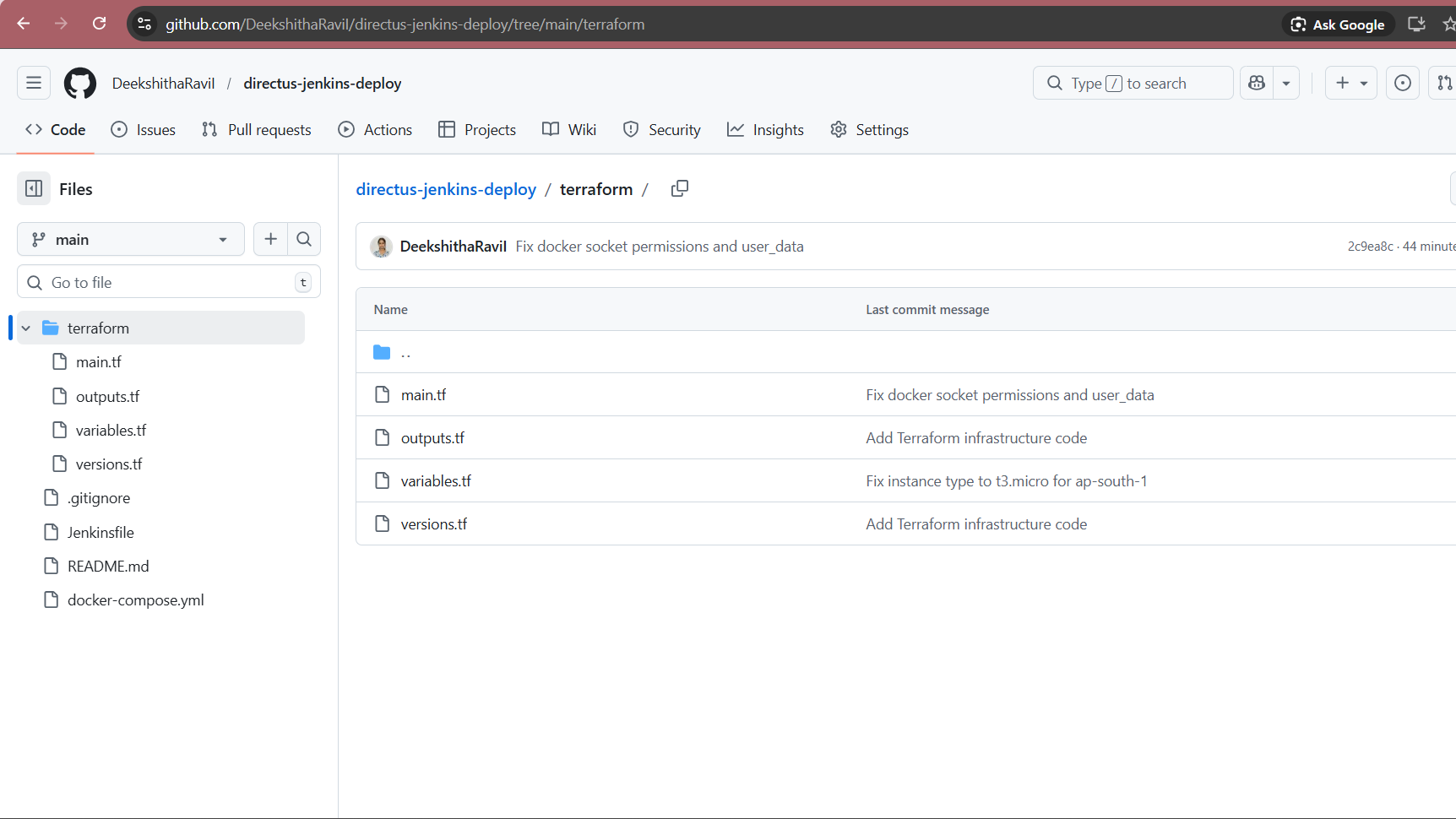
Project Structure
directus-jenkins-deploy/
    ├── terraform/
    │   ├── main.tf          # EC2, Security Group, Key Pair
    │   ├── variables.tf     # Input variables
    │   ├── outputs.tf       # Server IP, Private Key outputs
    │   └── versions.tf      # Provider versions
    ├── docker-compose.yml   # Directus + PostgreSQL
    ├── Jenkinsfile          # 6-stage CI/CD pipeline
    ├── .gitignore           # Excludes secrets and state files
    └── README.md
Step 1: Pre-Preparations for Jenkins Directus Deployment
Before writing any code, I completed several essential setup steps to ensure a smooth Jenkins Directus deployment. To begin with, I created an AWS free tier account and configured an IAM user with appropriate policies. Afterward, I generated the necessary Access Keys and installed the required DevOps tools on my local Windows machine.
Initialization: Set up the local project folder structure and pushed the initial code to GitHub.
AWS Account: Created a free tier account at aws.amazon.com.
IAM Security: Set up a user with AmazonEC2FullAccess and AmazonVPCFullAccess policies.
Credentials: Generated AWS Access Key IDs and Secret Keys, saving them securely.
Local Tools: Installed VS Code, Git, Terraform, and AWS CLI.
Source Control: Created a public GitHub repository named directus-jenkins-deploy.
Step 2: Terraform Infrastructure Code
The next phase involved writing Terraform code to automatically provision all required AWS resources. Within this setup, the most important file is main.tf, which defines four specific resources.
Key concept: Terraform generates an RSA 4096-bit SSH key pair automatically. As a result, no manual key management is needed, and the private key is passed securely to the pipeline as a sensitive output.
Here is the core of main.tf:
# Generate SSH Key Pair automatically
resource "tls_private_key" "directus_key" {
  algorithm = "RSA"
  rsa_bits  = 4096
}

resource "aws_key_pair" "directus_key_pair" {
  key_name   = "${var.project_name}-key"
  public_key = tls_private_key.directus_key.public_key_openssh
}

# Security Group - open ports 22, 80, 8055
resource "aws_security_group" "directus_sg" {
  name        = "${var.project_name}-sg"
  description = "Security group for Directus server"

  ingress {
    description = "SSH"
    from_port   = 22
    to_port     = 22
    protocol    = "tcp"
    cidr_blocks = ["0.0.0.0/0"]
  }

  ingress {
    description = "Directus"
    from_port   = 8055
    to_port     = 8055
    protocol    = "tcp"
    cidr_blocks = ["0.0.0.0/0"]
  }

  egress {
    from_port   = 0
    to_port     = 0
    protocol    = "-1"
    cidr_blocks = ["0.0.0.0/0"]
  }
}

# EC2 Instance with Docker pre-installed via user_data
resource "aws_instance" "directus_server" {
  ami                    = data.aws_ami.ubuntu.id
  instance_type          = var.instance_type
  key_name               = aws_key_pair.directus_key_pair.key_name
  vpc_security_group_ids = [aws_security_group.directus_sg.id]

  user_data = <<-EOF
    #!/bin/bash
    apt-get update -y
    apt-get install -y docker.io docker-compose
    systemctl start docker
    systemctl enable docker
    usermod -aG docker ubuntu
    chmod 666 /var/run/docker.sock
  EOF

  tags = {
    Name = "${var.project_name}-server"
  }
}
The user_data script is critical — it installs Docker and Docker Compose on the server at boot time so they are ready when Jenkins SSHs in to deploy Directus.
The outputs.tf exports the server IP and private key so the pipeline can use them:
output "instance_public_ip" {
  value = aws_instance.directus_server.public_ip
}

output "private_key" {
  value     = tls_private_key.directus_key.private_key_pem
  sensitive = true
}

output "directus_url" {
  value = "http://${aws_instance.directus_server.public_ip}:8055"
}
Step 3: Docker Compose Configuration
The docker-compose.yml defines two services that run on the Directus server. All sensitive values come from environment variables that the pipeline generates on the server at deploy time. The .env file is never committed to GitHub.
version: '3.8'

services:

  database:
    image: postgres:15
    container_name: directus_db
    restart: unless-stopped
    environment:
      POSTGRES_USER: directus
      POSTGRES_PASSWORD: ${DB_PASSWORD}
      POSTGRES_DB: directus
    volumes:
      - db_data:/var/lib/postgresql/data
    healthcheck:
      test: ["CMD-SHELL", "pg_isready -U directus"]
      interval: 10s
      timeout: 5s
      retries: 5

  directus:
    image: directus/directus:latest
    container_name: directus_app
    restart: unless-stopped
    ports:
      - "8055:8055"
    depends_on:
      database:
        condition: service_healthy
    environment:
      SECRET: ${SECRET}
      ADMIN_EMAIL: ${ADMIN_EMAIL}
      ADMIN_PASSWORD: ${ADMIN_PASSWORD}
      DB_CLIENT: pg
      DB_HOST: database
      DB_PORT: 5432
      DB_DATABASE: directus
      DB_USER: directus
      DB_PASSWORD: ${DB_PASSWORD}

volumes:
  db_data:
  directus_uploads:
  directus_extensions:
The depends_on with service_healthy condition ensures PostgreSQL is fully ready before Directus starts. This prevents startup failures.
Step 4: Jenkins Setup on AWS EC2
I launched a separate EC2 instance (Ubuntu 22.04, t3.small) to run Jenkins. Here is everything I installed on it:
# Install Java (required for Jenkins)
sudo apt update && sudo apt install -y openjdk-17-jdk

# Install Jenkins
curl -fsSL https://pkg.jenkins.io/debian-stable/jenkins.io-2023.key | gpg \
  --dearmor | sudo tee /usr/share/keyrings/jenkins-keyring.gpg > /dev/null
echo "deb [signed-by=/usr/share/keyrings/jenkins-keyring.gpg] \
  https://pkg.jenkins.io/debian-stable binary/" | \
  sudo tee /etc/apt/sources.list.d/jenkins.list > /dev/null
sudo apt update && sudo apt install -y jenkins
sudo systemctl start jenkins && sudo systemctl enable jenkins

# Install Terraform
wget -O- https://apt.releases.hashicorp.com/gpg | sudo gpg \
  --dearmor -o /usr/share/keyrings/hashicorp-archive-keyring.gpg
echo "deb [signed-by=/usr/share/keyrings/hashicorp-archive-keyring.gpg] \
  https://apt.releases.hashicorp.com $(lsb_release -cs) main" | \
  sudo tee /etc/apt/sources.list.d/hashicorp.list
sudo apt update && sudo apt install -y terraform

# Install Docker
sudo apt install -y docker.io docker-compose
sudo usermod -aG docker jenkins
sudo systemctl restart jenkins
I also added 2GB of swap memory because the t3.small instance was running low on RAM:
sudo fallocate -l 2G /swapfile
sudo chmod 600 /swapfile
sudo mkswap /swapfile
sudo swapon /swapfile
echo '/swapfile none swap sw 0 0' | sudo tee -a /etc/fstab
4.1: Essential Jenkins Plugins
Once the initial setup was complete, I navigated to Manage Jenkins → Plugins → Available plugins to add the necessary functionality. Specifically, these plugins allow the pipeline to handle secrets, communicate via SSH, and execute Terraform commands.
| Plugin | Purpose |
| Pipeline | Provides core Jenkinsfile support for the entire workflow. |
| Git | Allows the pipeline to pull the latest code from the GitHub repository. |
| Credentials Binding | Securely injects IAM keys and Directus secrets into the pipeline. |
| SSH Agent | Enables Jenkins to SSH into the Directus server for remote deployment. |
| Terraform | Provides a dedicated build wrapper for Terraform commands. |
Step 5: Jenkins Credentials Setup
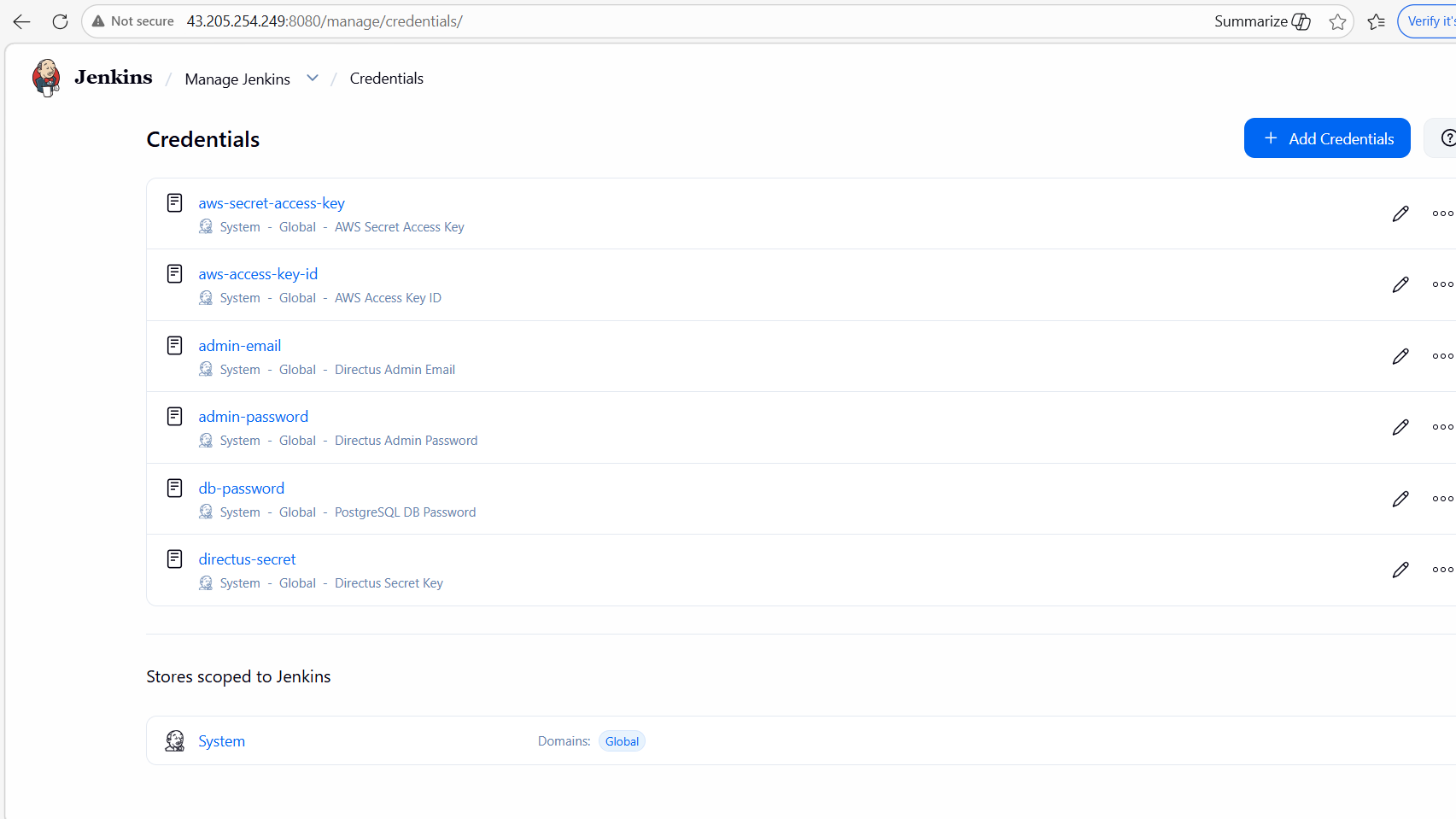
To ensure a secure Jenkins Directus deployment, all secrets must be stored within the Jenkins Credentials Store. To begin, navigate to Manage Jenkins → Credentials → System → Global → Add Credentials. Once there, you should add the following secrets as ‘Secret text’ to allow the pipeline to authenticate with AWS and Directus.
- AWS Access Key: Use aws-access-key-id for your IAM Access Key.
- AWS Secret: Input your IAM Secret Key under aws-secret-access-key.
- Directus Admin: Add admin-email and admin-password for CMS access.
- Database Security: Store your PostgreSQL password as db-password.
- Application Secret: Finally, create a directus-secret using any random string.
Step 6: The Jenkins Pipeline
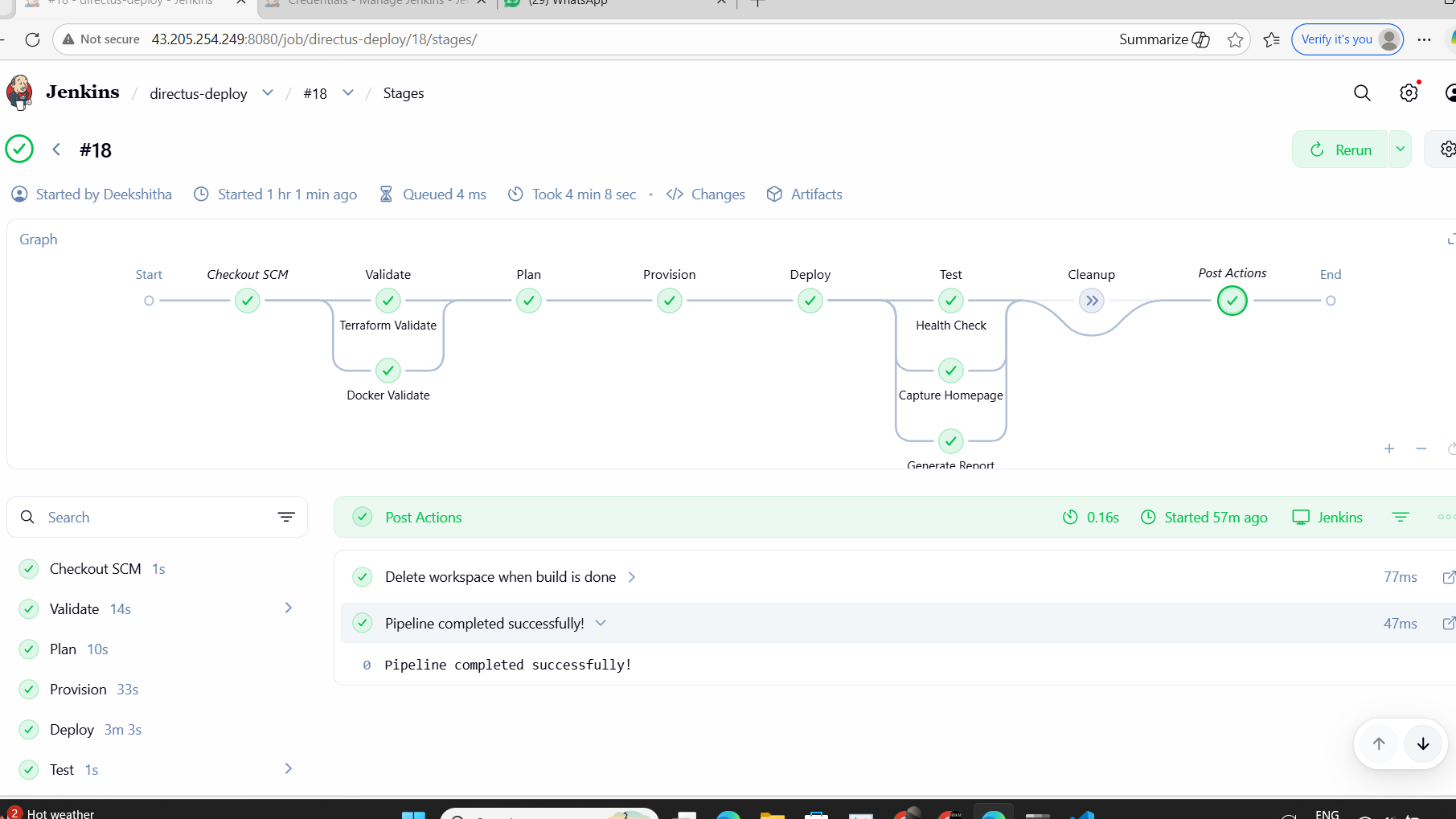
The Jenkinsfile is the heart of the entire project. It defines 6 stages that automate everything from validation to deployment.
Pipeline Flow:
Push to GitHub
      ↓
Validate (auto) → Check Terraform + Docker files
      ↓
Plan (auto) → Preview AWS resources
      ↓
Provision (auto) → Create EC2 + SG + Key Pair
      ↓
Deploy (auto) → SSH + docker-compose up
      ↓
Test (auto) → Health check + Report
      ↓
Cleanup (manual) → terraform destroy
                   only when DESTROY_INFRA=true
Here are the most important parts of the Jenkinsfile:
Environment and Parameters:
pipeline {
agent any

parameters {
    choice(
        name: 'DESTROY_INFRA',
        choices: ['false', 'true'],
        description: 'Set to true to destroy all infrastructure'
    )
}

environment {
    AWS_ACCESS_KEY_ID     = credentials('aws-access-key-id')
    AWS_SECRET_ACCESS_KEY = credentials('aws-secret-access-key')
    AWS_DEFAULT_REGION    = 'ap-south-1'
    ADMIN_EMAIL           = credentials('admin-email')
    ADMIN_PASSWORD        = credentials('admin-password')
    DB_PASSWORD           = credentials('db-password')
    DIRECTUS_SECRET       = credentials('directus-secret')
}
Provision Stage – Creates AWS infrastructure:
stage('Provision') {
steps {
timeout(time: 15, unit: 'MINUTES') {
dir('terraform') {
sh 'terraform init'
sh 'terraform apply -auto-approve'
sh 'terraform output -raw instance_public_ip > ../server_ip.txt'
sh 'terraform output -raw private_key > ../ssh_key.pem'
sh 'chmod 600 ../ssh_key.pem'
}
}
stash includes: 'server_ip.txt,ssh_key.pem', name: 'infra-outputs'
}
}
Deploy Stage – SSHs into server and starts Directus:
stage('Deploy') {
    steps {
        unstash 'infra-outputs'
        script {
            def serverIp = readFile('server_ip.txt').trim()

            // Wait for server to fully boot
            sh "sleep 90"

            // Copy docker-compose.yml to server
            sh """
                scp -i ssh_key.pem \
                    -o StrictHostKeyChecking=no \
                    docker-compose.yml \
                    ubuntu@${serverIp}:/home/ubuntu/docker-compose.yml
            """

            // Create .env and start containers
            sh """
                ssh -i ssh_key.pem \
                    -o StrictHostKeyChecking=no \
                    ubuntu@${serverIp} bash << 'ENDSSH'
                        cat > /home/ubuntu/.env << EOF
ADMIN_EMAIL=${env.ADMIN_EMAIL}
ADMIN_PASSWORD=${env.ADMIN_PASSWORD}
DB_PASSWORD=${env.DB_PASSWORD}
SECRET=${env.DIRECTUS_SECRET}
EOF
                        sudo chmod 666 /var/run/docker.sock
                        cd /home/ubuntu
                        sudo docker-compose up -d
                        echo "Waiting for Directus..."
                        for i in \$(seq 1 12); do
                            if curl -s http://localhost:8055 > /dev/null; then
                                echo "Directus is up!"
                                break
                            fi
                            sleep 10
                        done
ENDSSH
            """
        }
    }
}
Cleanup Stage – Only runs when manually triggered:
stage('Cleanup') {
    when {
        expression { return params.DESTROY_INFRA == 'true' }
    }
    steps {
        timeout(time: 15, unit: 'MINUTES') {
            dir('terraform') {
                sh 'terraform init'
                sh 'terraform destroy -auto-approve'
            }
        }
    }
}
The graph below illustrates all six pipeline stages completing successfully.
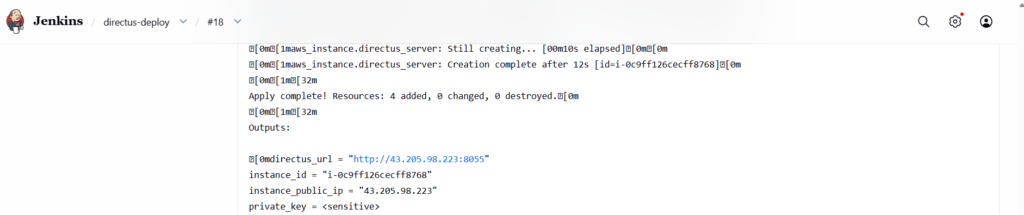
In the console logs, you can see Terraform successfully provisioning the EC2 instance.
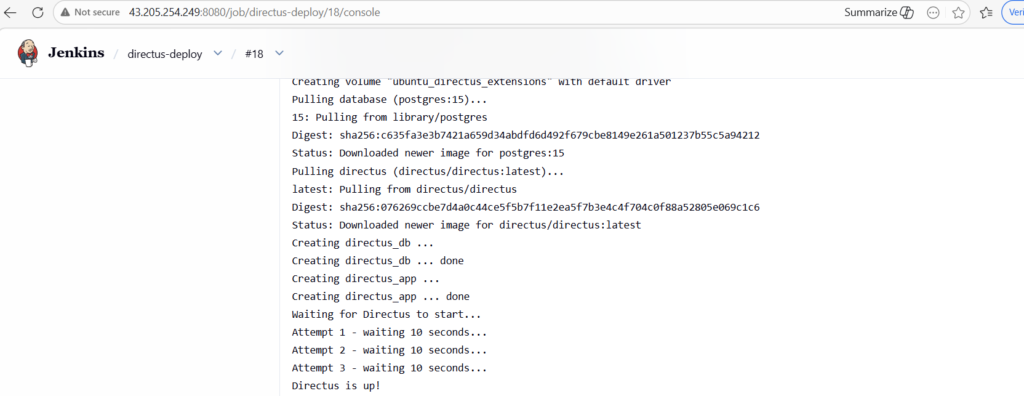
Finally, the deployment logs confirm that Directus is live and accessible.
Step 7: Passing Data Between Pipeline Stages
One of the key challenges in Jenkins is passing data between stages since each stage runs in a fresh context. I solved this using Jenkins stash and unstash.
After provisioning, the server IP and private key are saved to files and stashed:
// Save outputs to files
sh 'terraform output -raw instance_public_ip > ../server_ip.txt'
sh 'terraform output -raw private_key > ../ssh_key.pem'

// Stash files for next stages
stash includes: 'server_ip.txt,ssh_key.pem', name: 'infra-outputs'
In the Deploy and Test stages, the files are retrieved:
// Retrieve files from previous stage
unstash 'infra-outputs'
def serverIp = readFile('server_ip.txt').trim()
Step 8: Security Implementation
Security was a key focus throughout the project:
- AWS credentials stored as Jenkins Secret text — never hardcoded anywhere
- Directus passwords stored in Jenkins Credentials Store
- The .env file generated on the fly on the server — never committed to GitHub
- SSH private key generated by Terraform and handled as sensitive throughout
- .gitignore excludes .env, .pem, .key, and Terraform state files
terraform/.terraform/
terraform/*.tfstate*
terraform/*.tfvars
.env
*.pem
*.key
Final Result
After the pipeline runs successfully, Directus CMS is fully deployed and accessible at:
http://SERVER_IP:8055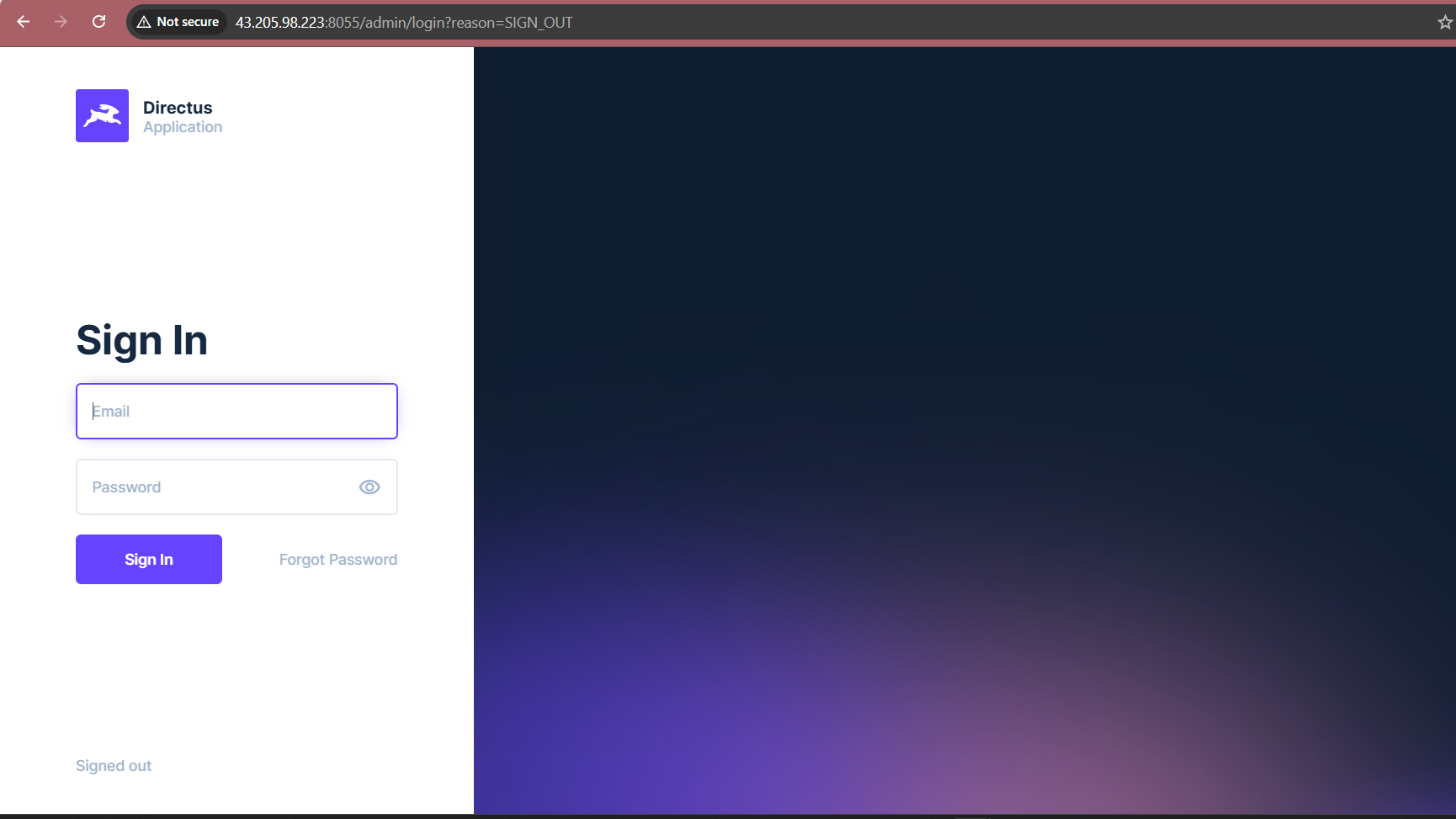
Login with the admin credentials you configured in Jenkins. The entire deployment from code push to live application takes approximately 10 to 15 minutes with zero manual server access required.
Challenges and How I Overcame Them
While the project was successful, I encountered several specific hurdles during the Jenkins Directus deployment process. To ensure the pipeline remained stable, I implemented the following solutions:
- Challenge 1: Jenkins Timeouts on Long Shell Commands Initially, the default Jenkins heartbeat check was too short for Terraform operations, which often take several minutes. To resolve this, I configured the HEARTBEAT_CHECK_INTERVAL to 86400 seconds in the Jenkins service override file. Consequently, the pipeline no longer fails during lengthy infrastructure provisioning.
- Challenge 2: Out-of-Memory Errors on AWS The t3.micro instance ran out of RAM when running Jenkins and Terraform simultaneously. To fix this, I upgraded to a t3.small instance (2GB RAM) and added 2GB of swap memory as an extra buffer. Afterward, the system handled the workload without any performance lag.
- Challenge 3: Docker Socket Permission Denied When the deployment started, the ubuntu user did not have access to the Docker daemon. I fixed this by adding chmod 666 /var/run/docker.sock to the user_data script. Furthermore, I ensured the user was added to the Docker group, thereby allowing containers to start without manual intervention.
Conclusion: Final Thoughts on Jenkins Directus Deployment
This assessment provided a comprehensive, hands-on experience covering the full DevOps lifecycle. To conclude the project, I successfully transitioned from infrastructure provisioning to automated application deployment and health testing. By adapting the implementation from GitLab to Jenkins, I demonstrated not just the ability to follow instructions, but to understand underlying concepts and apply them using a diverse toolset.
Key Learnings from the Project
Working on this Jenkins Directus deployment gave me real-world experience with several critical DevOps concepts. Specifically, I focused on the following areas:
- Infrastructure as Code: Using Terraform showed me how to manage cloud resources in a repeatable way. Instead of clicking through the AWS console, everything is now defined in version-controlled code.
- Pipeline Orchestration: I learned how to structure multi-stage Jenkins pipelines. Furthermore, I gained experience in handling stage dependencies and passing sensitive artifacts like SSH keys.
- Security Best Practices: This project reinforced the importance of secret management. Consequently, by using the Jenkins Credentials Store, I ensured that no passwords or API keys were ever hardcoded in the repository.
- Problem-Solving: Debugging the Jenkins Directus deployment required a deep dive into console logs. As a result, I can now identify root causes—such as memory limits or socket permissions—more efficiently.
Ultimately, the final pipeline is production-ready. It features robust secret management, automated health checks, and controlled infrastructure cleanup. Anyone can now clone the repository, add their credentials, and have a fully running Directus CMS on AWS in under 15 minutes.
Written by Deekshitha R
LinkedIn: www.linkedin.com/in/deekshitha-raveendran-31581527b
