
In today’s DevOps-driven world, Jenkins has become the backbone of automation — managing builds, tests, and deployments across entire software lifecycles. However, because Jenkins often stores sensitive credentials, deploy keys, and access tokens, it can be a prime target for unauthorized access. That’s why enabling two-step verification (2FA) or multi-factor authentication (MFA) is a critical step toward hardening your Jenkins environment.
Two-step verification adds an extra layer of security on top of your password. Instead of relying solely on something you know (your password), Jenkins will also require something you have — like a mobile authentication app (Google Authenticator, Authy, or Duo), an SMS code, or a hardware key (like a YubiKey). Even if an attacker somehow gets your password, they still can’t log in without the second factor.
This blog provides a complete, step-by-step walkthrough to help you secure Jenkins with 2FA — from understanding why it matters, to plugin installation, configuration, testing, and recovery options.
We’ll also cover best practices, how to enforce 2FA policies for users and groups, and how to recover access in case someone loses their second factor.
Note: Jenkins doesn’t natively include 2FA functionality for all authentication flows out of the box.
To enable it, you typically need to:
- Install a dedicated Two-Factor Authentication plugin (like the miniOrange Two-Factor Authentication plugin)
- Or configure Jenkins behind a Single Sign-On (SSO) solution (such as Okta, Azure AD, or Google Workspace), which can enforce MFA at the identity provider (IdP) level.
In this guide, we’ll focus on the plugin-based method since it’s quick to set up, works with Jenkins’ built-in user database, and is ideal for teams without centralized SSO.
We’ll also briefly explore how SSO-based MFA works for larger organizations.
Why Enable Two-Step Verification (2FA) for Jenkins?
Jenkins is one of the most powerful and widely used automation servers in the DevOps world. It manages continuous integration and continuous delivery (CI/CD) pipelines, often holding sensitive information like Git credentials, SSH keys, Docker Hub tokens, and AWS secrets. Because of this, Jenkins becomes a critical security target — if an attacker gains unauthorized access, they could alter pipelines, deploy malicious code, or even leak credentials.
That’s where Two-Step Verification (2FA) comes in.
2FA enhances your Jenkins security by adding an additional authentication layer on top of the standard username and password. Instead of depending on just one factor (your password), Jenkins will also require a second verification factor, typically something you have — like a mobile authenticator app (Google Authenticator, Authy, or Microsoft Authenticator), an SMS code, or a hardware key (like a YubiKey).
Here’s why enabling 2FA is so important in Jenkins:
- Stronger account protection: Even if a user’s password is leaked, stolen, or guessed, attackers cannot log in without the second factor.
- Prevents insider misuse: If multiple users share credentials (which is risky), enforcing 2FA helps tie actions to specific users.
- Protects build and deployment pipelines: Jenkins has deep integrations with your repositories and servers. Securing access prevents unauthorized code pushes or infrastructure changes.
- Meets compliance standards: Many industry security frameworks — like ISO 27001, SOC 2, and PCI DSS — recommend or require MFA for systems with administrative access.
- Peace of mind for admins: With 2FA, administrators can be confident that even if passwords are compromised through phishing or malware, attackers still can’t get into Jenkins easily.
- Supports remote work security: As DevOps teams increasingly work remotely, 2FA helps ensure that only verified users can access Jenkins, no matter where they log in from.
Prerequisites & safety checklist
Jenkins admin access (Manage Jenkins).
Backup of $JENKINS_HOME (config.xml, users, secrets) before making auth changes. Always have a rescue admin account stored safely.
Jenkins version compatible with the chosen plugin (check plugin requirements). Example: miniOrange plugin lists minimum Jenkins compatibility on its plugin page and releases. developers.miniorange.com+1
Two-Factor Authentication for Jenkins
Two-Factor Authentication for Jenkins Plugin adds a layer of security to Jenkins authentication by requiring users to provide a second factor of authentication along with their username and password. It enhances the overall security of your Jenkins environment. Additionally, this plugin does not require you to extend the security realm, making it easier to implement and use.
Supported Authentication method
- Security Questions
- OTP over email
- Duo Push Notification [Available in Premium version]
- Mobile Authenticator [Available in premium version]
- Yubikey hardware token [Available in premium version]
- OTP over SMS [Available in premium version]
- Backup code [Available in premium version]
Features of the Jenkins Two-Factor Authentication (2FA) Plugin
The Jenkins 2FA plugin offers a range of features designed to improve security while keeping user management simple. Here’s a breakdown of its key features and how they help secure your Jenkins environment:
1. Enable and Disable 2FA for All Users in a Single Click (Free)
This feature allows administrators to enable or disable two-factor authentication for every user in Jenkins with just one click. It saves time and ensures that all users are covered under the same security policy. Perfect for quick rollout or mass updates across your organization.
2. 2FA Supported for All Security Realms (Free)
The plugin supports 2FA across all security realms, including the Jenkins internal database, LDAP, and Active Directory. No matter which authentication method your Jenkins setup uses, two-step verification can be applied seamlessly. This ensures consistent protection across all login types.
3. Easy Configuration (Free)
Setting up the plugin requires no complex steps or scripting. The user-friendly interface under Manage Jenkins → Configure Global Security makes configuration simple for any admin. Within minutes, you can enable 2FA and choose authentication methods like TOTP or email-based codes.
4. Enable 2FA for Users in Specific Groups (Premium)
In the premium version, you can enforce 2FA only for selected groups or teams. This is ideal for organizations that want to apply extra security to privileged users, such as admins or developers handling production deployments. It gives flexibility without enforcing global 2FA on all users.
5. Disable 2FA for Users in Specific Groups (Premium)
Similarly, you can exclude specific groups from 2FA enforcement when necessary. For example, service accounts or automation users that don’t support interactive logins can be exempted. This ensures operational flexibility while maintaining strong security for human users.
Steps Enable Two-Factor Authentication (2FA) in Jenkins from Scratch
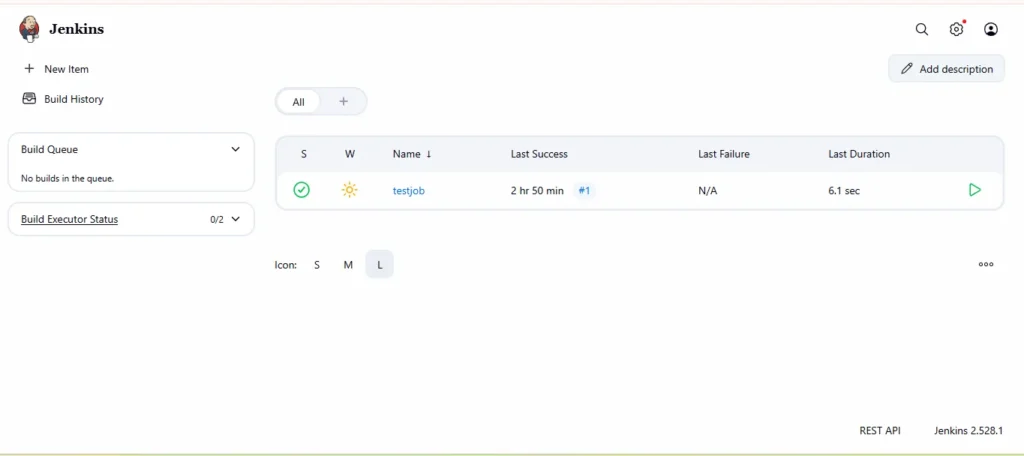
Step 1: Log in to Jenkins as an Administrator
- Open your Jenkins dashboard (for example:
http://your-server-ip:8080). - Log in using your admin credentials.
- Make sure you have administrative privileges, since you’ll need to install and configure plugins.
Step2: Navigate to the Plugin Manager
- From the Jenkins dashboard, click on “Manage Jenkins” on the left sidebar.
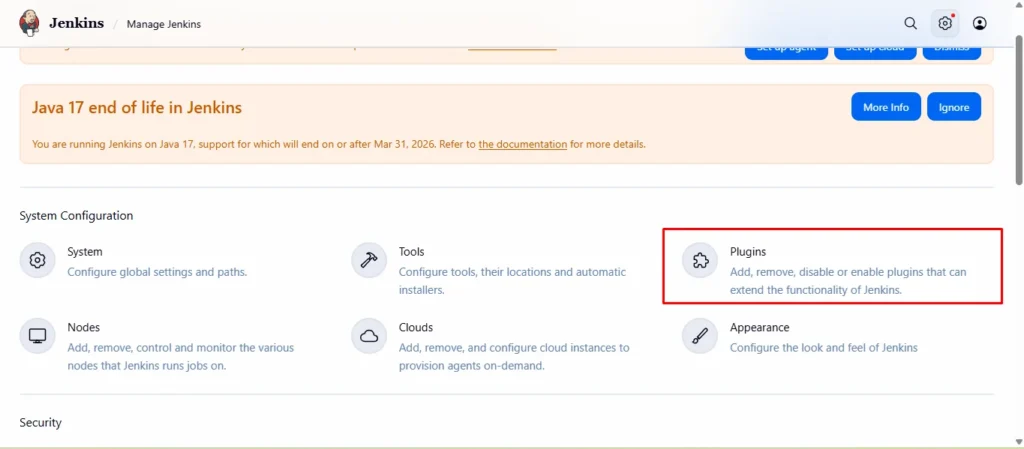
- Under System Configuration, select “Manage Plugins.”
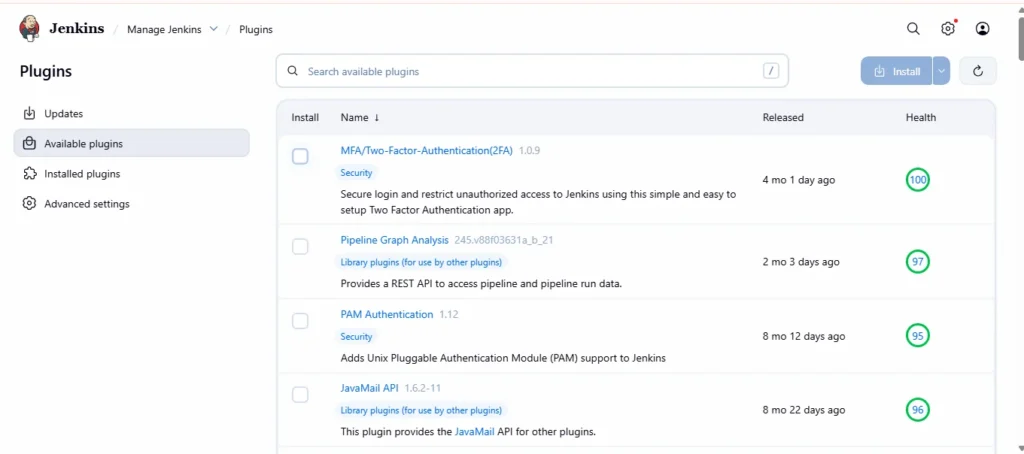
- Go to the Available tab to browse available plugins.
Step3: Search and Install the 2FA Plugin
- In the search box, type “Two-Factor” or “miniOrange Two-Factor Authentication.
- Check the box next to the plugin name.
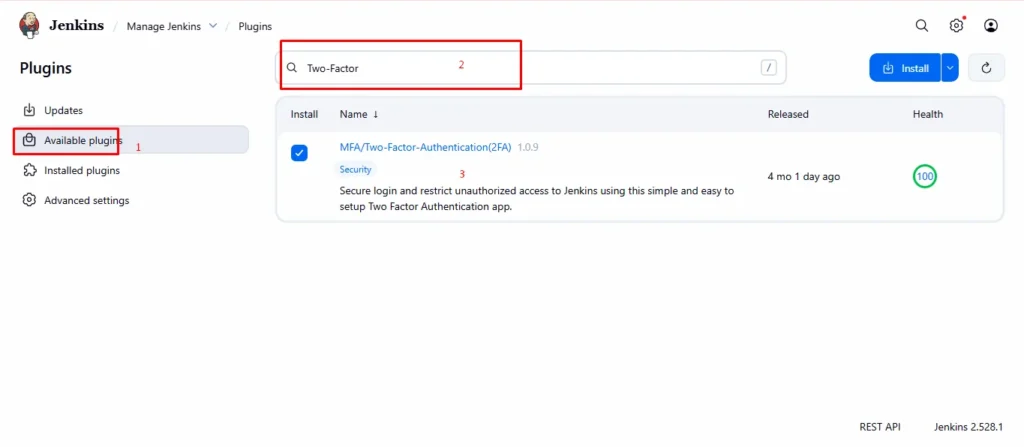
3.Click “Install without restart” or “Download now and install after restart.”
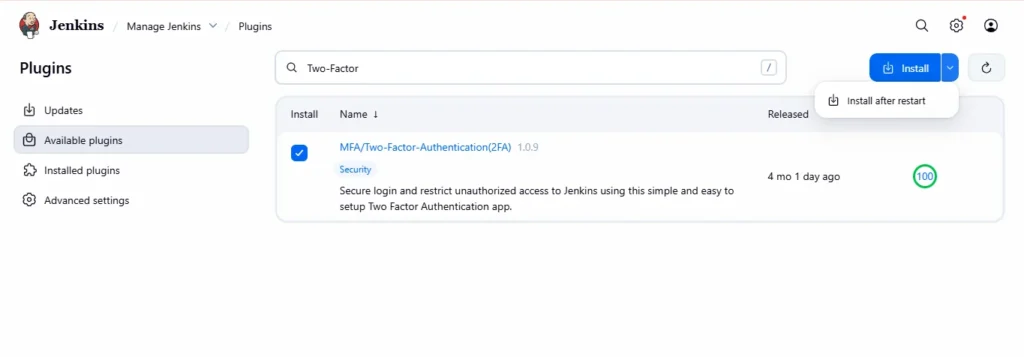
4. Wait for the plugin to install completely.
5. Once done, restart Jenkins if required.
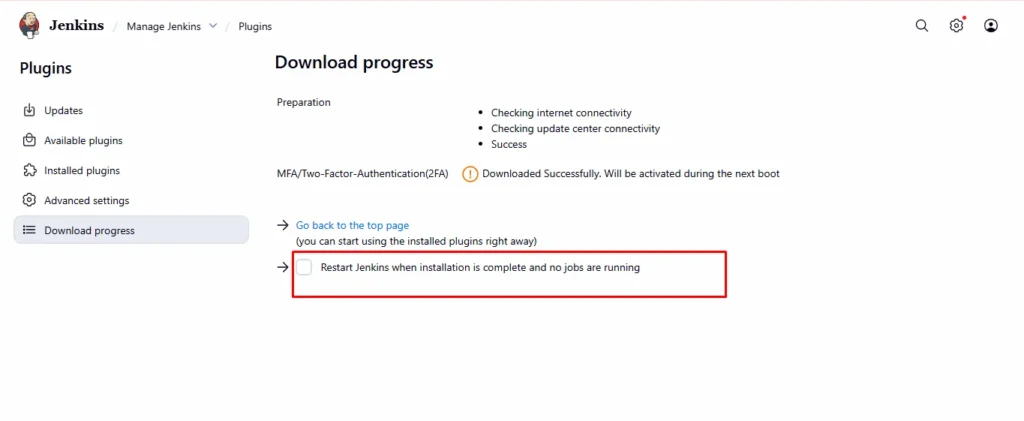
Step 4: Open Global Security Configuration
- After restarting, go back to the Manage Jenkins page.
- Click on “2FA Global Configurations.”
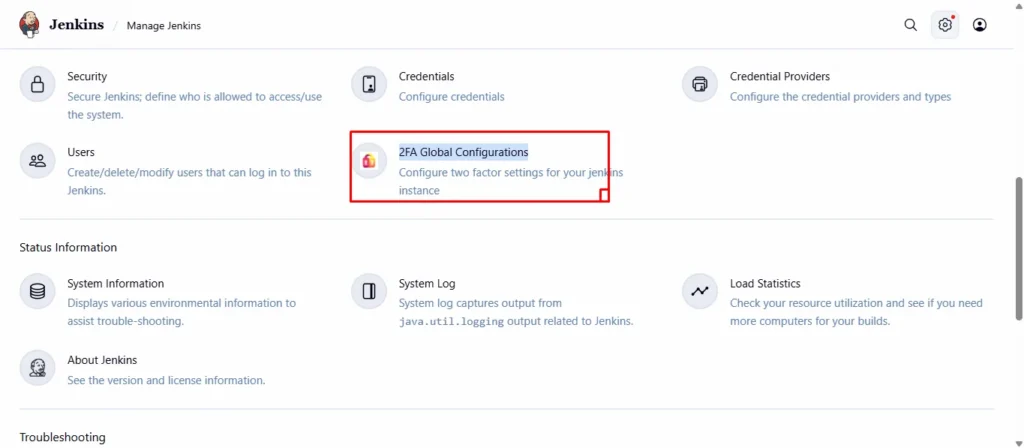
3. After Clicking, you’ll now see a new section for Two-Factor Authentication (2FA).
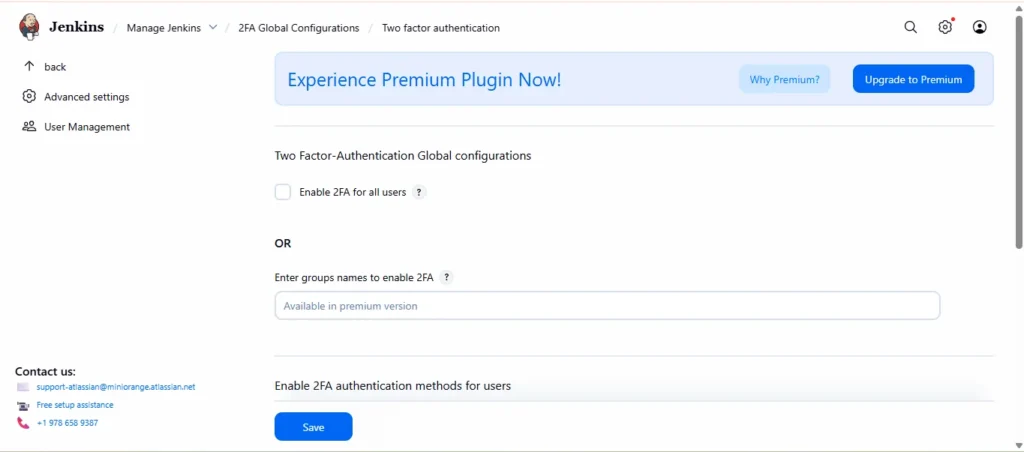
Step5: Enable Two-Factor Authentication
- In the Two-Factor Authentication section, check the box to enable 2FA.
- You’ll have the following options:
- Enable 2FA for all users (recommended for small teams)
- Enable 2FA for selected users or groups (premium feature)
- Choose your preferred option.
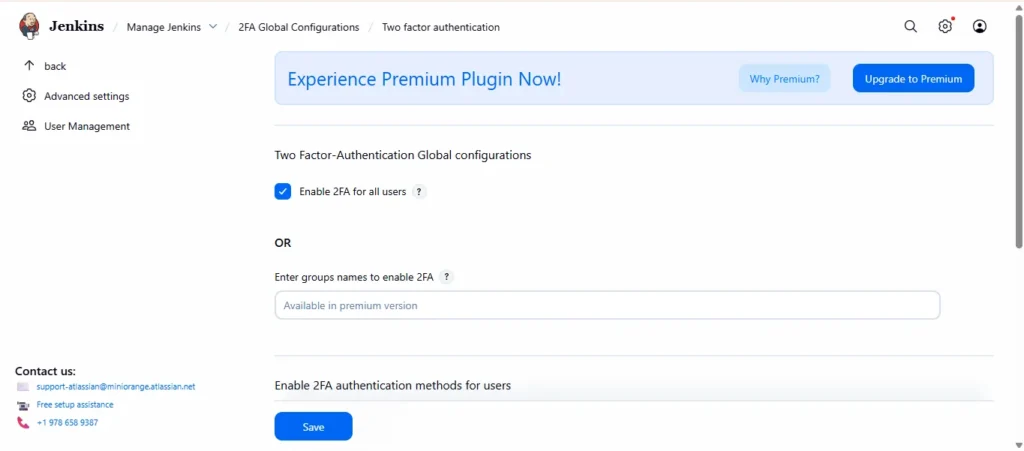
Step6: Select Your 2FA Method
- Choose the type of second-factor authentication you want to use:
- TOTP (Time-based One-Time Password) via Google Authenticator or Authy
- Email-based OTP
- SMS-based OTP
- Security questions
- Hardware security keys (WebAuthn/FIDO2)
- Click Save to apply changes.
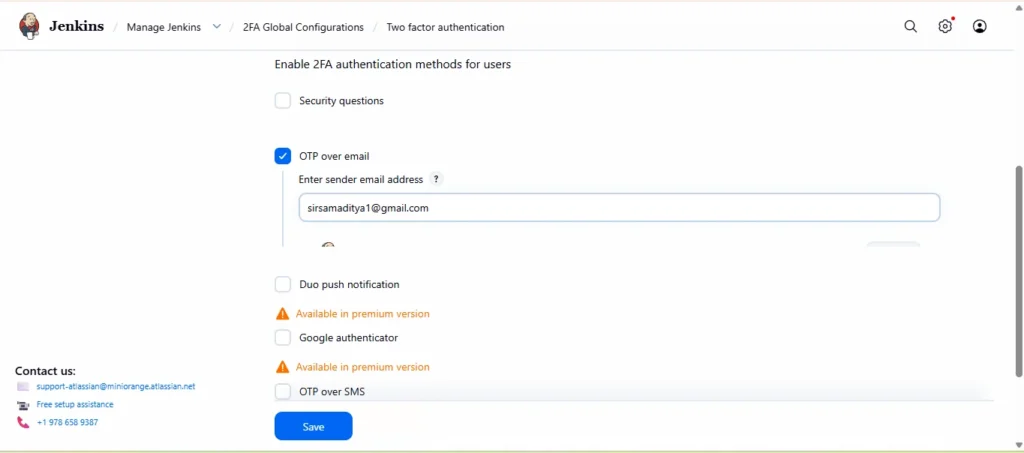
Note: Remember, if you choose OTP over Email, you must configure Email Notification in Jenkins. If you haven’t configured it yet, refer to the blog below:
Email Configuration in Jenkins
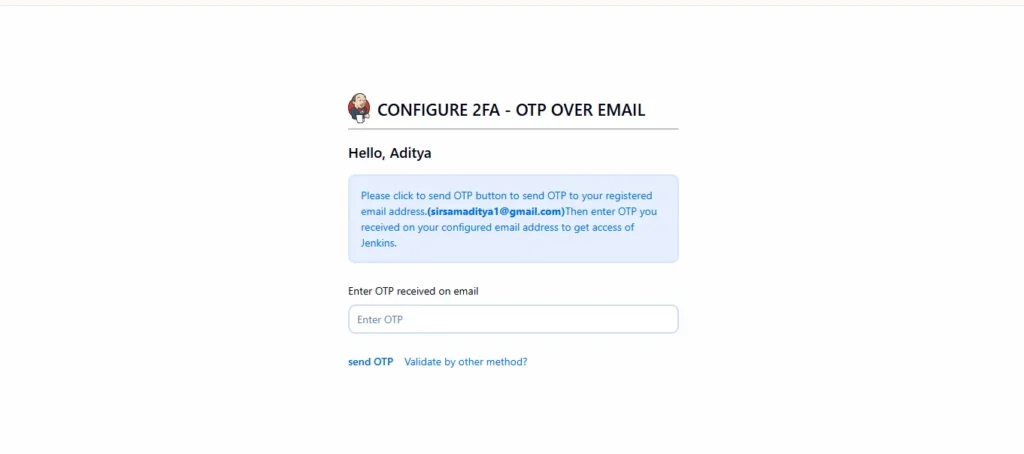
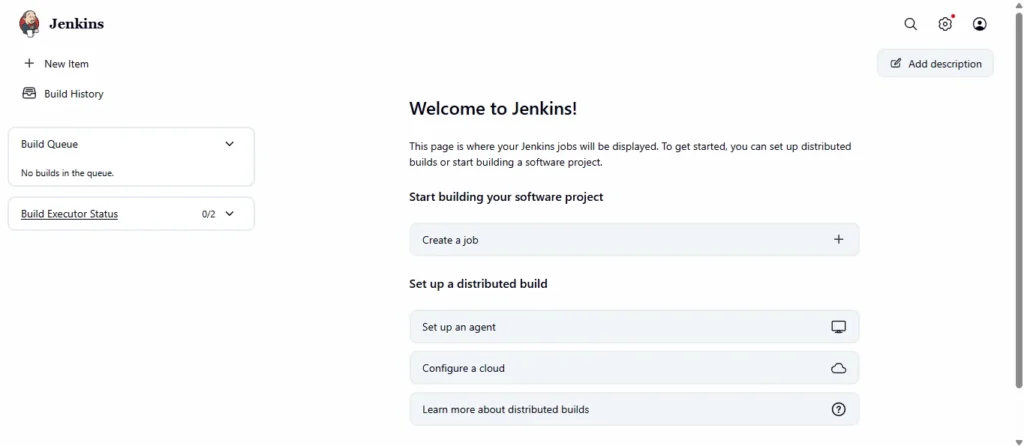
Step7: Test the 2FA Login Flow
- Log out of Jenkins.
- Try logging back in using your username and password.
- Jenkins will now prompt you for a verification code (TOTP, SMS, or Email).
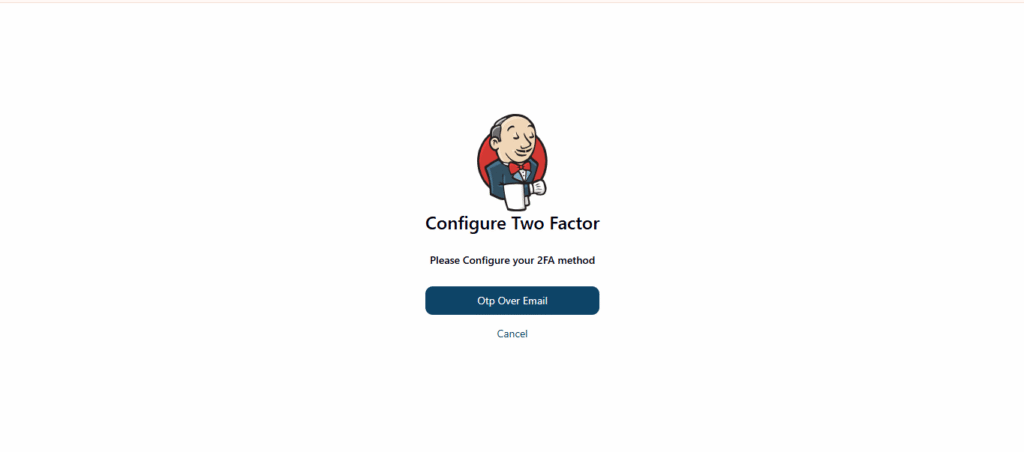
4.Enter the correct code, and you’ll be successfully logged in.
Benefits of Enabling Two-Factor Authentication (2FA) in Jenkins
Implementing Two-Factor Authentication (2FA) in Jenkins isn’t just a security best practice — it’s an essential measure to safeguard your CI/CD pipelines, sensitive credentials, and administrative accounts from unauthorized access. Below are the key benefits of enabling 2FA in Jenkins, along with how each one strengthens your DevOps environment:
1. Stronger Protection Against Unauthorized Access
Passwords alone can be compromised through phishing, brute-force attacks, or credential leaks. 2FA adds a second verification step, such as a one-time password (OTP) or authentication app code, ensuring that even if a password is stolen, attackers cannot gain access without the second factor. This significantly reduces the risk of unauthorized logins.
2. Secures Critical CI/CD Pipelines
Jenkins often integrates with critical systems like GitHub, AWS, Docker Hub, and production servers. Enabling 2FA prevents attackers from hijacking these pipelines and deploying malicious code. By securing Jenkins logins, you protect your build and deployment environments from potentially disastrous breaches.
3. Enforces Accountability Among Users
With 2FA in place, each user must log in individually using their own credentials and authentication method. This eliminates the common (and risky) practice of sharing passwords among team members. As a result, every action in Jenkins can be traced back to a verified user, improving auditability and accountability.
4. Compliance with Security Standards
Many organizations must comply with security frameworks such as ISO 27001, SOC 2, PCI DSS, and GDPR, which require multi-factor authentication for administrative access. Enabling 2FA in Jenkins helps meet these compliance standards, reducing audit risks and ensuring your DevOps environment aligns with industry security benchmarks.
5. Protects API Tokens and Credentials
Jenkins stores various credentials, SSH keys, and tokens used for automation. If Jenkins is compromised, attackers could gain access to your repositories, cloud infrastructure, or production systems. 2FA helps prevent such incidents by securing the Jenkins login itself — effectively reducing the attack surface.
6. Builds Trust in DevOps Automation
By implementing 2FA, your organization demonstrates a commitment to security-first DevOps practices. This builds confidence among developers, operations teams, and stakeholders that CI/CD automation is both efficient and secure. It also fosters a security-aware culture among your team members.
7. Secure Remote Access for Distributed Teams
In today’s world of remote and hybrid work, Jenkins users often log in from various networks and devices. 2FA ensures that only verified users can access Jenkins, regardless of where they are. This helps maintain a secure Jenkins environment even when team members work outside the corporate network.
8. Reduces Impact of Credential Theft
Even in the worst-case scenario — such as when a password database is leaked — 2FA drastically minimizes the impact. Without the second factor (like an authenticator app or hardware key), attackers cannot proceed. This “defense-in-depth” strategy protects Jenkins from becoming a single point of failure.
9. Enhances Security Without Sacrificing Usability
The miniOrange Jenkins 2FA plugin (and similar tools) make it easy to implement MFA with minimal user friction. Users can authenticate quickly using their preferred method — whether it’s a mobile app, SMS, or security key. This strikes the right balance between strong security and everyday convenience.
10. Simplifies Security Management for Admins
For Jenkins administrators, managing 2FA through the plugin interface is simple and scalable. You can enable or disable 2FA for all users in one click, apply it only to certain groups, or exclude system accounts. This centralized control reduces administrative overhead while maintaining robust protection
Conclusion
Securing Jenkins with Two-Factor Authentication (2FA) is one of the most effective ways to protect your DevOps pipelines, credentials, and user accounts from cyber threats. By adding this additional layer of security, you ensure that even if an attacker compromises a password, they still can’t gain unauthorized access without the second factor. Using the miniOrange Two-Factor Authentication plugin, administrators can easily enforce 2FA for all users or specific groups, depending on their security needs.
As Jenkins continues to serve as the backbone of CI/CD automation, enabling 2FA not only strengthens your organization’s security posture but also ensures compliance with modern cybersecurity standards like ISO 27001 and SOC 2. Whether your team is small or enterprise-scale, implementing multi-factor authentication helps build trust, accountability, and resilience in your DevOps environment.
By following the steps outlined in this guide — from plugin installation to configuration and testing — you can successfully enable 2FA in Jenkins and safeguard your automation workflows against unauthorized access. Remember: security should never be an afterthought — it’s the foundation of every reliable DevOps system.
